
Your buyers already email you orders. Connect that mailbox and your agent reads each new order, checks it and puts it on your desk. With a connected mailbox, your agent can also answer buyers from your own address, in the same email thread.
It works with any email: Gmail, Google Workspace, Outlook, Microsoft 365, Yahoo, iCloud, Zoho, GoDaddy, Hostinger and any other mailbox with mail app access (IMAP).
Who can do it: admins. You also need to be able to sign in to the mailbox your buyers email.
In the app your agent is called Ava by default; you can rename her.
Open the page
Go to Integrations → Your email. You can also open Ava → Email. Under How do you want to connect? pick one of three ways. You can change it later.
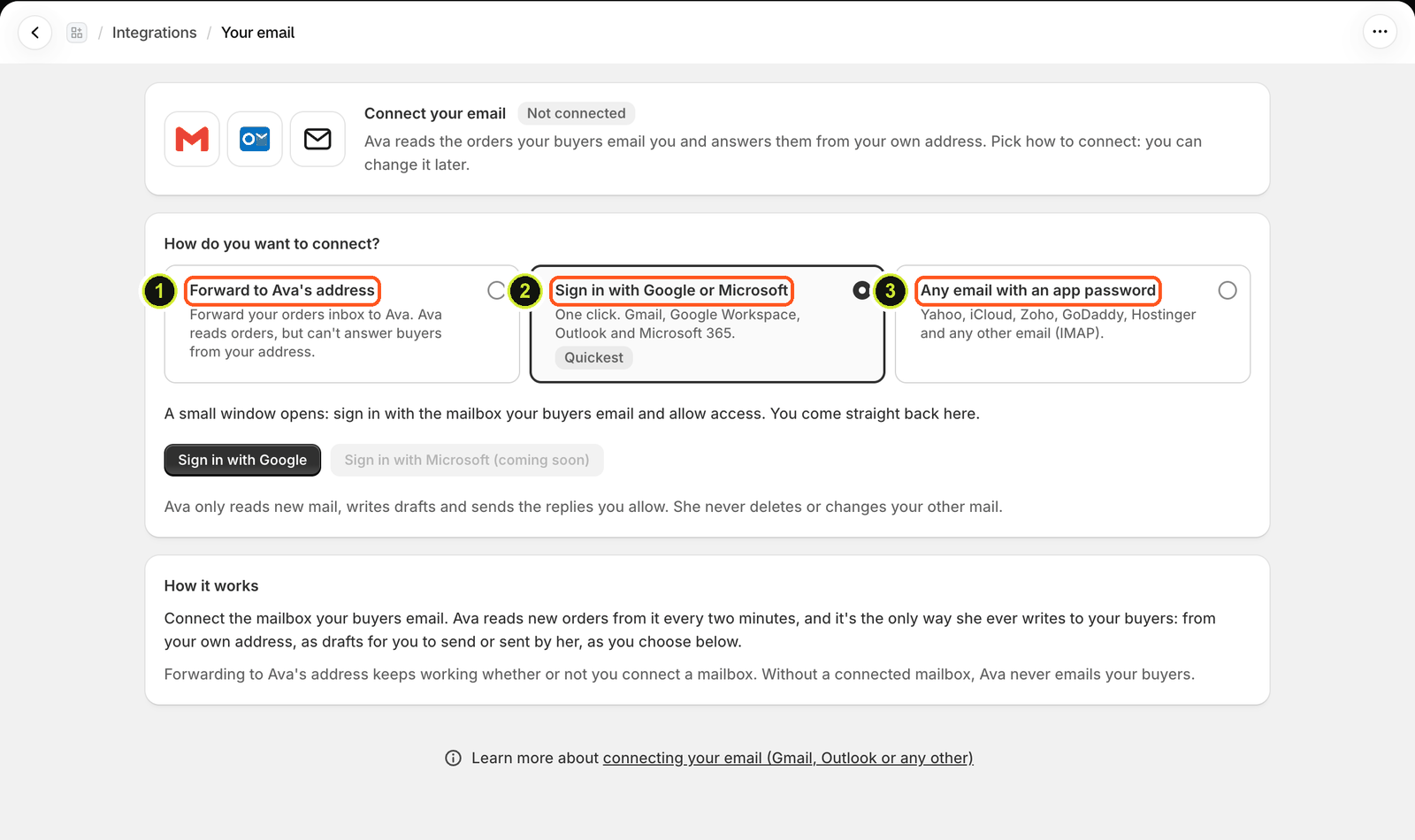 Integrations → Your email: Forward to Ava's address, Sign in with Google or Microsoft, or any email with an app password
| Way | Good for | Can your agent answer buyers from your address? |
|---|---|---|
| Forward to Ava's address | Any email, nothing to sign in to | No. It only reads |
| Sign in with Google or Microsoft | Gmail, Google Workspace, Outlook, Microsoft 365. One click | Yes |
| Any email with an app password | Yahoo, iCloud, Zoho, GoDaddy, Hostinger and other email | Yes |
Way 1: Forward to your agent's address
- Click Forward to Ava's address.
- Copy the address shown under Ava's address.
- In your email, set your orders inbox to forward to it. See forwarding steps shows how for each provider.
Forwarding always works, even when a mailbox is connected too. See Forward orders from your inbox for step by step help.
Way 2: Sign in with Google or Microsoft
- Click Sign in with Google or Microsoft.
- Click Sign in with Google (Gmail, Google Workspace) or Sign in with Microsoft (Outlook, Hotmail, Live, Microsoft 365).
- A small window opens. Sign in with the mailbox your buyers email and allow access. You come straight back.
- Choose how your agent answers buyers (below) and save.
Your agent only reads new mail, writes drafts and sends the replies you allow. It never deletes or changes your other mail.
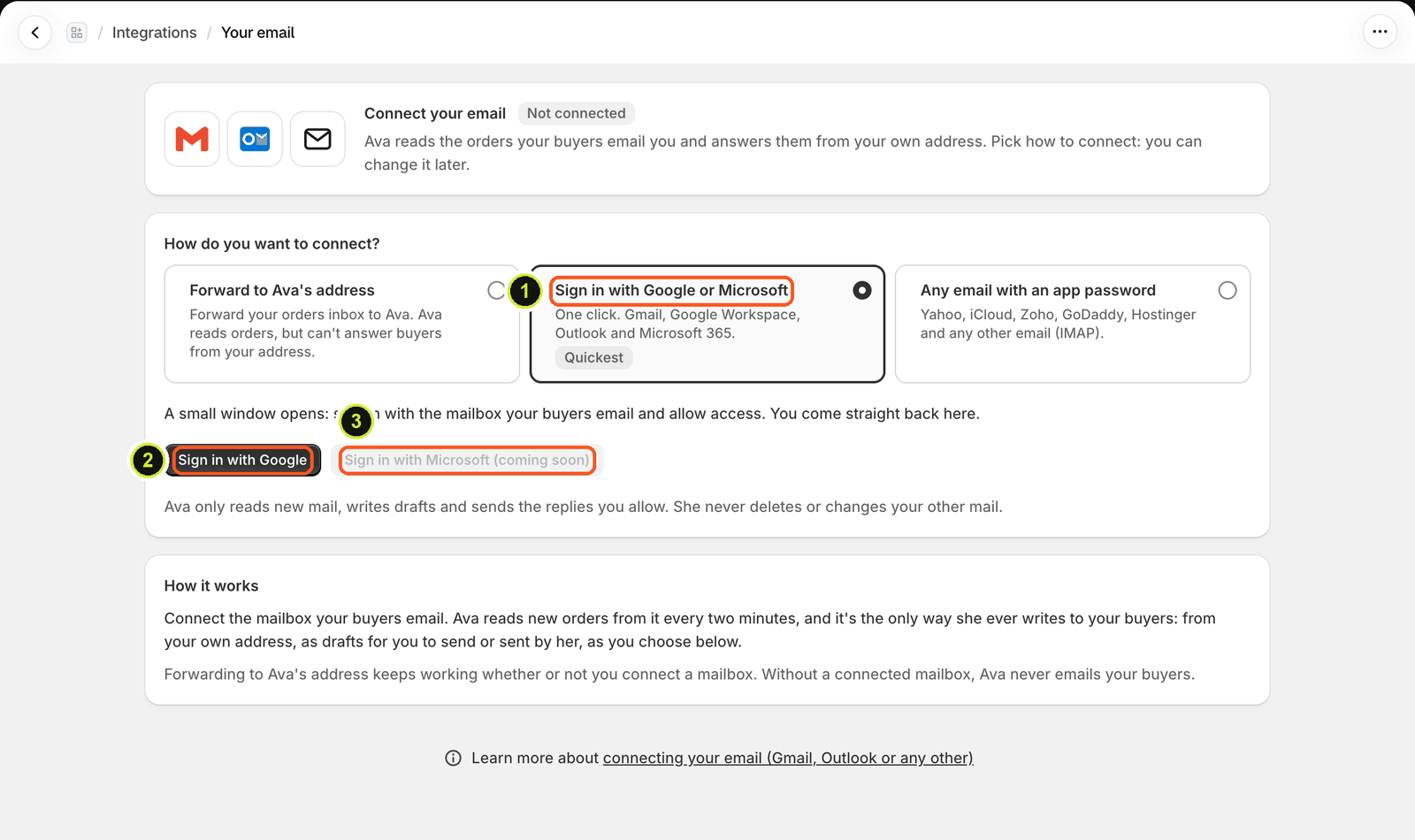 Sign in with Google or Microsoft picked, with the sign-in buttons
If Sign in with Microsoft shows Coming soon, forward your inbox for now, or contact support.
Your company needs its own Google or Microsoft app? In the connect window, choose Your own app instead of ShopiAgents' app. See Connect Google Workspace with your own app.
Way 3: Any email with an app password
- Click Any email with an app password, then Connect with an app password.
- Type the Email address your buyers send orders to. The app finds your email provider and fills in the server settings. Not right? Pick yours under Email provider.
- Make an app password in your email account. The box Get an app password for [provider] shows the steps, with buttons that open the right page.
- Paste it under App password (or Mailbox password, for providers that use the mailbox's own password).
- Click Connect. The app checks it can read and send, then asks How should Ava answer your buyers? Pick one, or Decide later.
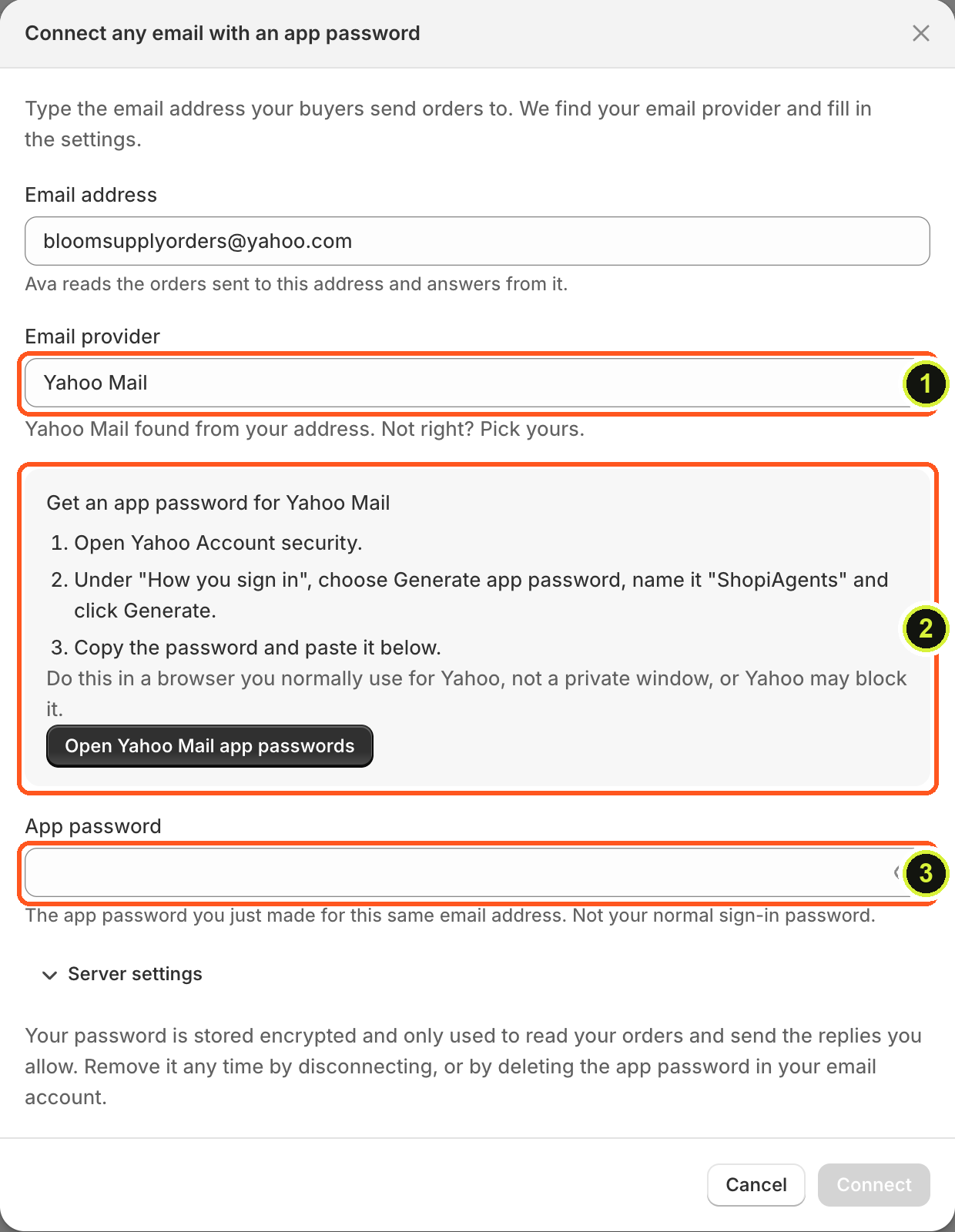 The app-password window for a Yahoo address: provider found, the steps to get an app password, and the App password field
Your agent then checks the mailbox for new orders every two minutes.
Where to make an app password
An app password is a separate password you make in your email account, just for one app. It's not your normal sign-in password. You can delete it any time.
| Provider | What to do |
|---|---|
| Gmail | Turn on 2-Step Verification, then open App passwords, name it "ShopiAgents" and copy the 16-letter password. No App passwords option? Use Sign in with Google instead |
| Google Workspace | Same as Gmail. If App passwords is missing, your Workspace admin needs to allow IMAP. Easier: use Sign in with Google |
| Yahoo | Yahoo Account security → Generate app password (help). Use a browser you normally use for Yahoo, not a private window |
| AOL | AOL Account security → Generate app password |
| iCloud | Apple Account Sign-In and Security → App-Specific Passwords. Needs two-factor authentication |
| Zoho | Turn on IMAP Access in Zoho Mail settings. With two-factor sign-in, make an app password in Zoho Accounts → Security; otherwise use your Zoho password. Pick your Zoho type and region |
| Fastmail | Settings → Privacy & Security → Manage app passwords and access. Fastmail's Basic plan doesn't include mail app access |
| GMX | Turn on POP3 & IMAP in GMX settings (how), then use your GMX password |
| Yandex | Turn on mail app access in Yandex Mail settings, then make an app password of type Mail in Yandex ID |
| GoDaddy, Hostinger, IONOS | Use the mailbox's own password (the one for its webmail) |
| Titan | Turn on Enable Titan on Other Apps, then use your mailbox password |
| Namecheap Private Email | Turn on access for third-party apps, then use your mailbox password |
| Other email | Enter the incoming (IMAP) and outgoing (SMTP) server names and ports under Server settings. Search the web for "your provider IMAP SMTP settings" |
Outlook, Hotmail, Live and Microsoft 365 don't allow app passwords for email apps any more. If you type one of those addresses, the app sends you to Sign in with Microsoft.
Your password is stored encrypted and only used to read your orders and send the replies you allow.
How your agent answers buyers
With a mailbox connected (way 2 or 3), choose one:
- Off: Ava only reads. Her emails to buyers wait in the app for you.
- Drafts for you. Your agent saves her reply as a draft in your mailbox, in the buyer's thread. You check it and send it.
- Ava sends them. Your agent sends her reply right away, from your address, in the same thread.
You can change this any time on Integrations → Your email. More in How your agent answers buyers by email.
Once connected
The Your email card shows the Email account, its Status and how replies go out. More settings opens the folder to read and the mail your agent leaves alone (no-reply senders, newsletters, addresses you block).
Emails to buyers (approvals, quotes, reminders, statements) also go out from this mailbox. Only want to send emails through an email service (SMTP)? Use Set up email sending under the Your email card. See Send emails to buyers from your own address.
With Google, you can also save documents to Google Drive and keep lists in Google Sheets. See Save to Google Drive and Sheets.
What your buyers see
Nothing changes for them. They email the address they always use. Replies come from your address, in their thread, signed with your store's name.
If something goes wrong
- "Ava can't sign in to your email": the password changed or the app password was deleted. Click Reconnect and paste a new app password, or sign in again.
- "needs an app password here, not your normal password": make an app password with the button in the window and paste that.
- "Mail app access (IMAP) is turned off": turn on IMAP in your email settings, then try again.
- "We couldn't reach the incoming mail server": check the server name and port under Server settings. Secure ports are 993 or 143 for incoming mail, and 587 or 465 for outgoing mail.
- "Ava could read your email, but the sending server didn't accept the password": check the Username under Server settings.
- More fixes in Email and Google Workspace problems.