
An email rarely stands alone. A buyer asks a question, your agent answers, the buyer writes back, you add a line. The Mailbox shows all of it as one conversation, so you never have to piece a thread together, and you can reply from the same place, as your store.
Who can do it: everyone can read the Mailbox. Replying and sending drafts needs Approver or Admin.
In the app your agent is called Ava by default; you can rename her. The Mailbox opens from her page (Open her mailbox).
Read a whole conversation
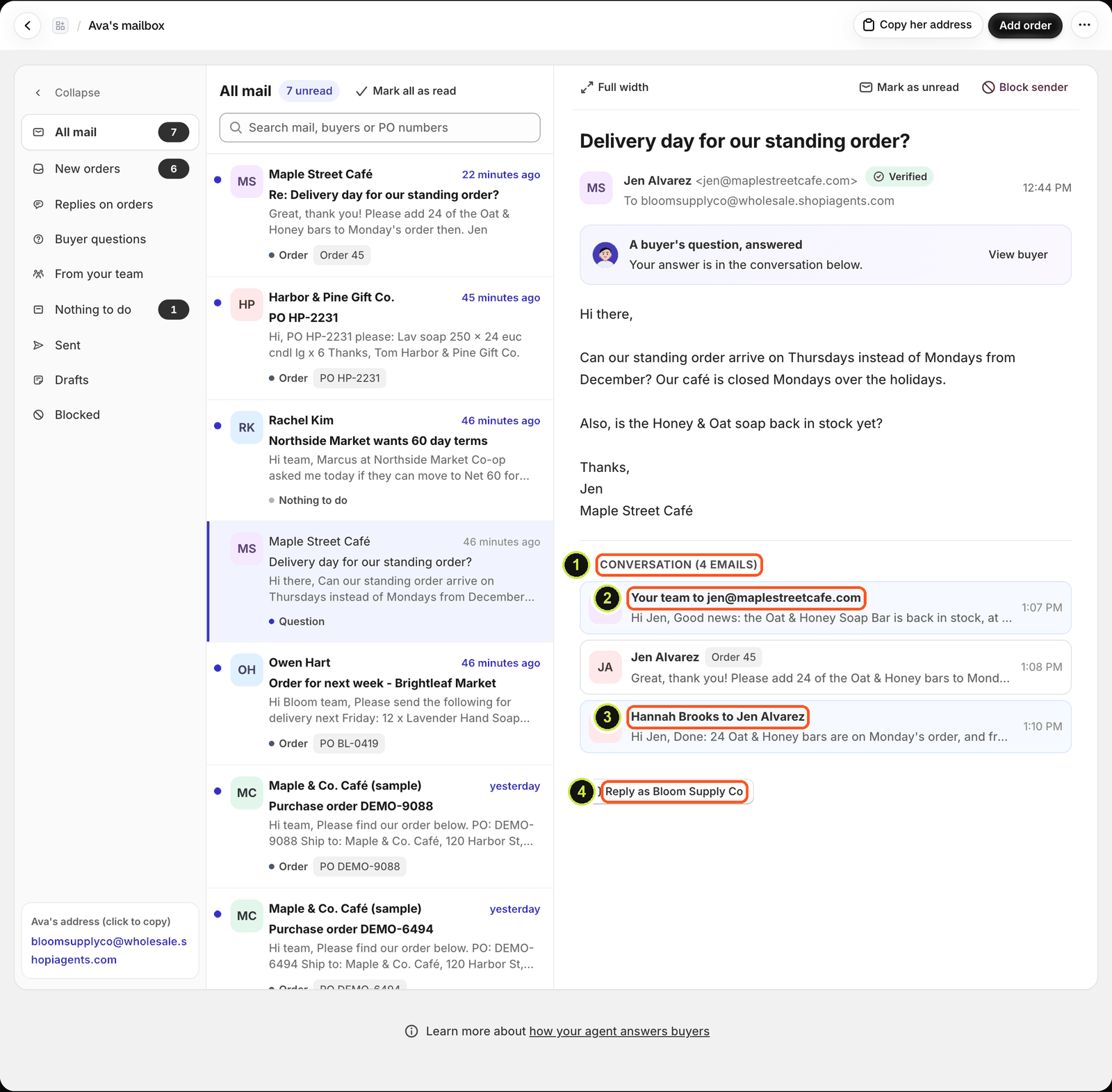 The Mailbox: an email with the conversation under it and Reply as Bloom Supply Co
- Open the Mailbox and click an email.
- Under the email, Conversation lists every other email in the same thread, oldest first: the buyer's emails, your agent's answers and your team's replies.
- Each line says who wrote it and to whom ("Your team to Jen", "Hannah Brooks to Jen Alvarez"), with the time. Click a line to read it in full.
The card at the top says what your agent made of the email: an order, a reply on an order, a buyer's question, or nothing to do. Once a question is answered in the conversation, the card says so.
Emails from your own team (for example a rep asking about a buyer) stay out of buyer conversations.
Reply as your store
- Click Reply as [your store] under the conversation.
- The reply goes to the person who wrote, with Re: and the subject filled in. Write your message above the sign-off.
- Click Send reply, then confirm.
It goes from your connected email, in the same email thread, so it lands in the buyer's inbox under their own message. The conversation shows it as sent by you. If no email is connected yet, the reply waits and goes once you connect one: see Connect your email.
Edit and send your agent's drafts
When your agent drafts an answer to a buyer's question, you'll find it in two places:
- In the Mailbox, the email's card says A buyer's question with Answer it.
- On Orders, filter by Buyer questions: each question shows the buyer's email, what your store's data says, and the draft under Answer (edit before sending).
Change anything you like, then click Send answer. The answer goes from your store and joins the conversation. Drafts your agent wrote that you haven't sent are under Drafts in the Mailbox, where Edit and send does the same.
Whether your agent's answers wait for you or go on their own is your choice: see How your agent answers buyers by email.
A buyer's emails on their page
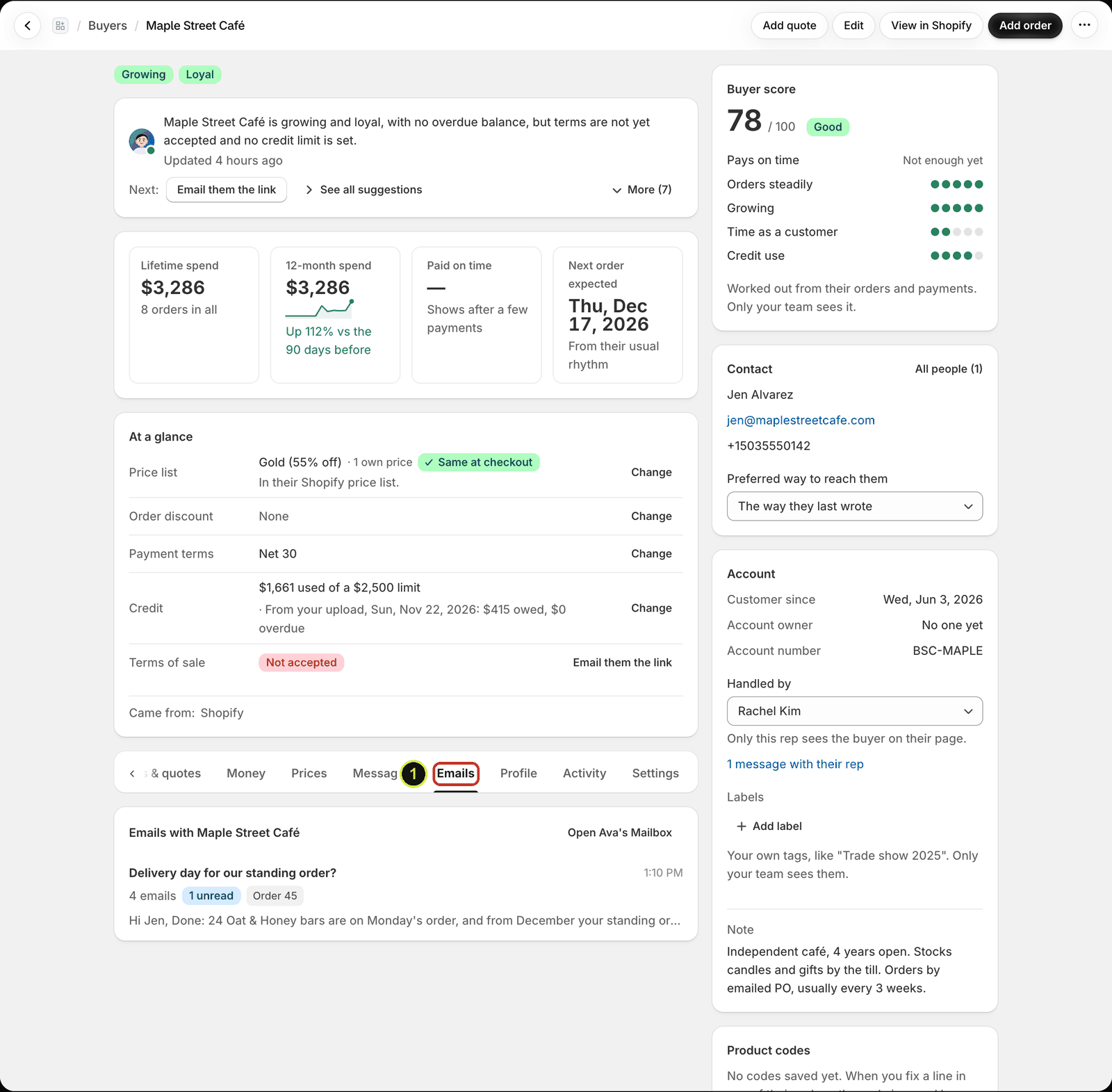 The buyer page's Emails tab: each conversation with the buyer, its emails and unread count
Open a buyer and click the Emails tab. Every conversation with that buyer is listed, newest first, with how many emails it has, how many are unread and the order it's about. Click one to open it in the Mailbox.
What your buyers see
Normal emails from your store, in one thread. Never your agent's name or any mention of AI.
If something goes wrong
- Reply isn't there. You need Approver or Admin. Team emails and emails from blocked senders can't be replied to from the Mailbox.
- "It waits and goes once you connect your email." Nothing is connected to send from. Connect your email.
- An email shows up as its own conversation. Some email apps drop the thread details. It still appears on the buyer's Emails tab.