
Putting buyers on price lists one at a time gets old fast. A customer group does it for you: "Gold retailers: shops that spent over $50,000 this year get 40% off", "Cafés get 25% off". Each group has one price list and a way to decide who's in it. New buyers who fit join by themselves.
Who can do it: editors and up.
Open groups
Go to Prices → Groups. At the top, Who gets which price shows every group, its price list and its buyers, plus the buyers In no group (they keep the list you gave them, or pay retail).
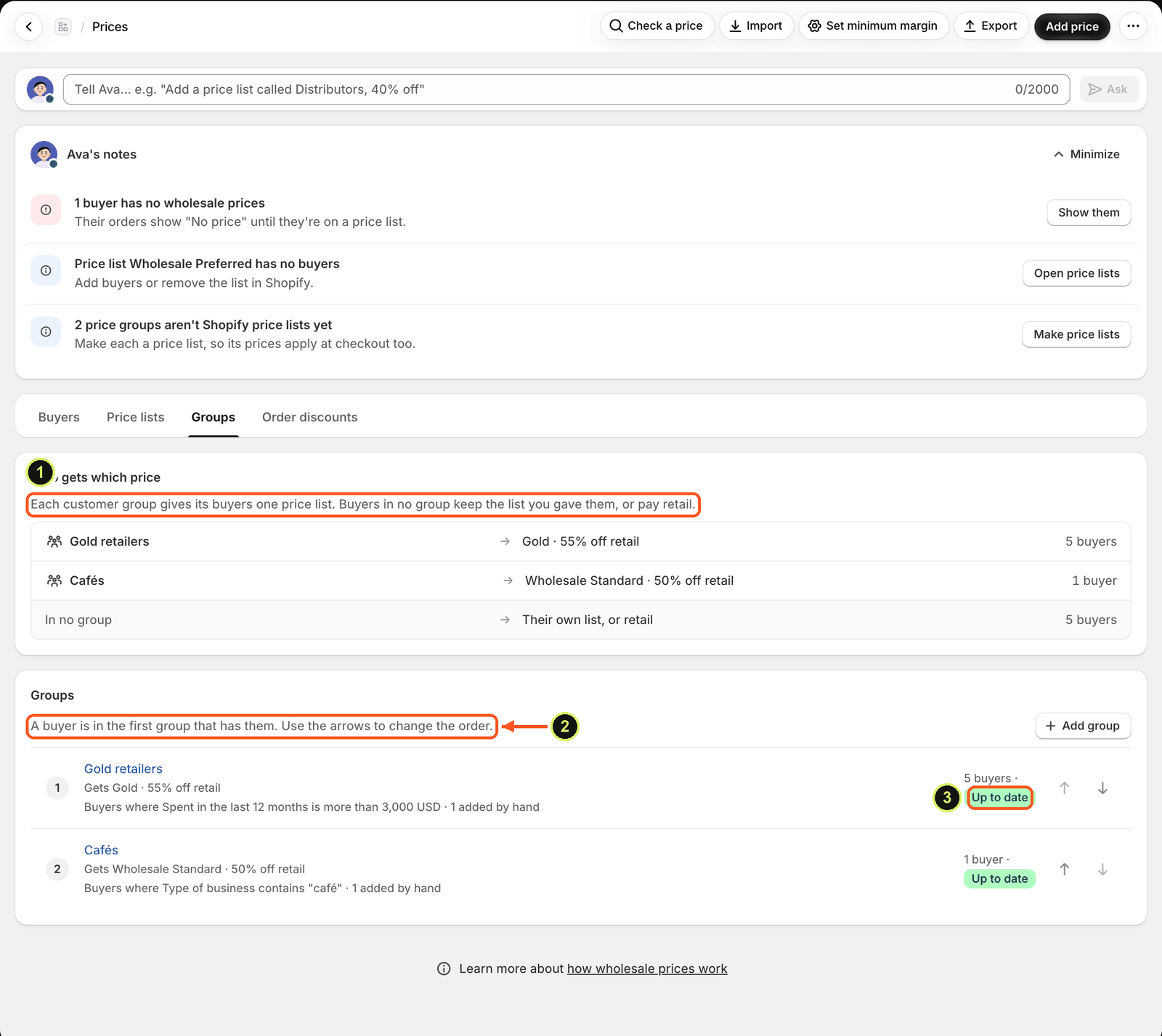 Prices → Groups: who gets which price, and the groups in order
Add a group
Click Add group. It takes three steps, with Back, Next and Skip where a step is optional.
Step 1: Name and prices
- Choose With [your agent] and describe the group in your own words ("Gold retailers: shops that spent over $50,000 this year get 40% off"), or Enter it myself. Your agent fills in the name and % off and marks what it filled, for you to check.
- Group name: only you and your team see it. Add a Note if you like.
- Under Which prices does this group get?, pick A price list you have, or A new price list at a % off your retail prices. You can give products their own prices later.
In the app your agent is called Ava by default; you can rename her.
Step 2: Who's in it
Use a rule, buyers by hand, or both:
- Buyers who match a rule: build it from these fields:
- Shopify: Shopify customer tag
- Buyer: Label, Country, Came from, Buyer for (months)
- Orders: Spent in the last 12 months, Orders in the last 12 months, Spent in total
- Application: Type of business, Yearly sales, and any answer from their wholesale application
- Add buyers by hand: these buyers are in the group whatever the rule says.
- Leave buyers out: these buyers are never in the group, even when the rule matches them.
- Keep this group up to date: on by default. See Keeping groups up to date.
Rules can read your Shopify customer tags, so groups you kept with another app's tags carry over.
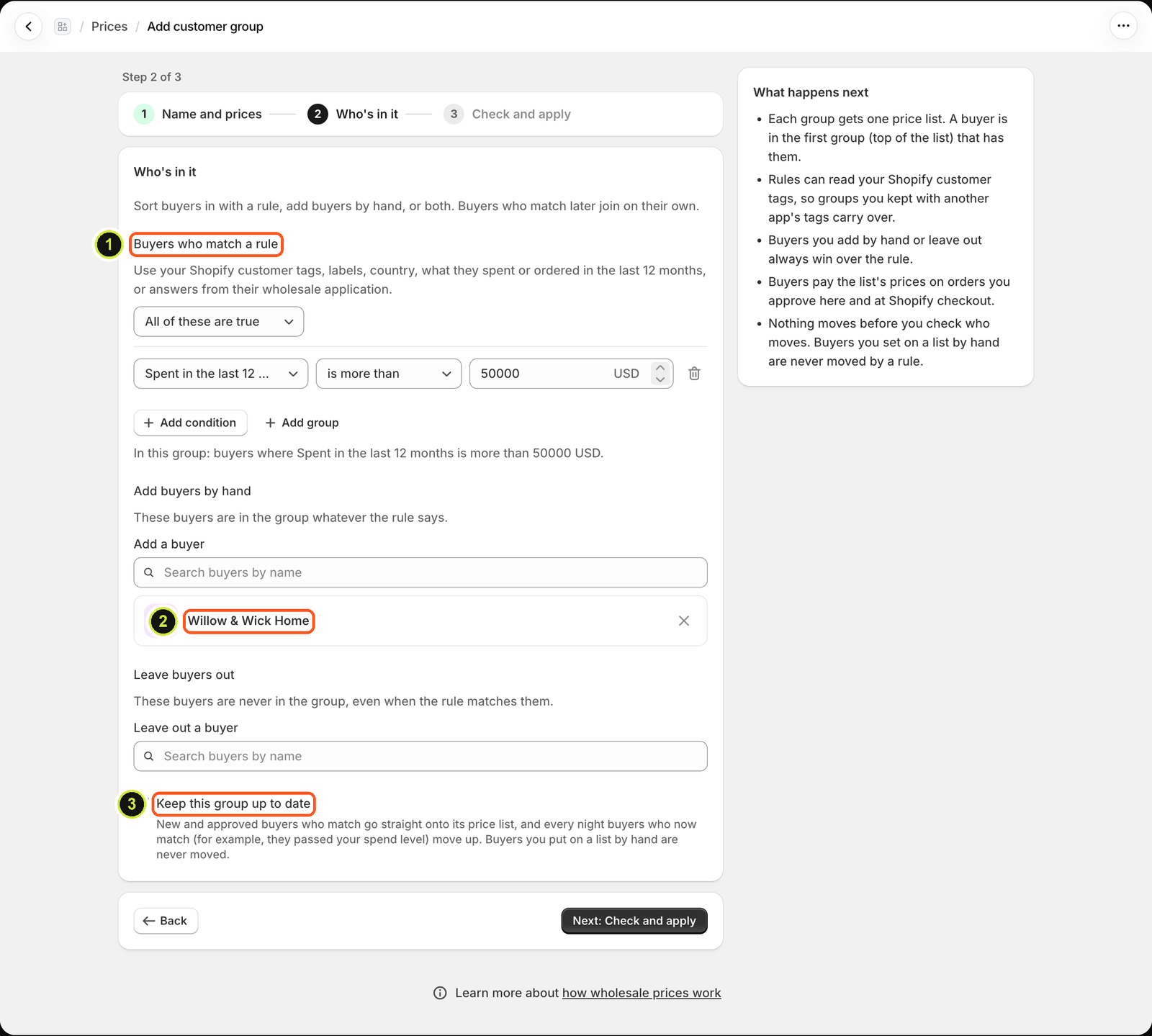 Add customer group, step 2: a spend rule, one buyer added by hand, and Keep this group up to date
Step 3: Check and apply
Before anything changes, you see who moves, for example:
- "12 will move onto Gold: Oak & Fern, Harbor Goods…"
- "3 are already on Gold"
- "2 are on another list you set by hand" (marked Kept)
- "1 matches, but is in a group higher up"
Leave Put them on [list] now ticked to move them when you save, or untick it to apply later from the group's page. To move the buyers you set by hand too, tick Also move [number] buyers you put on another price list by hand.
Click Add group.
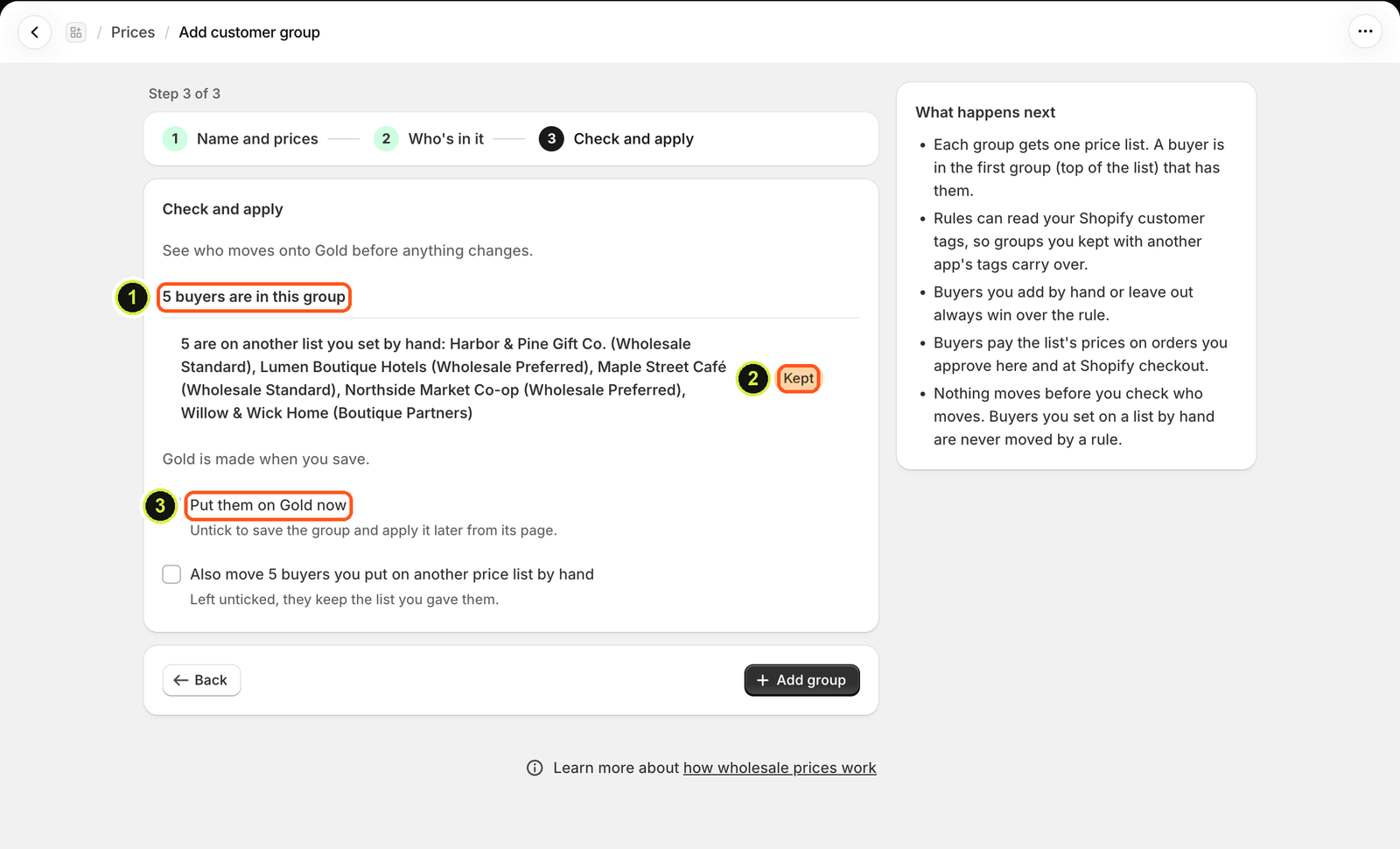 Add customer group, step 3: who matches, buyers set by hand kept, and Put them on Gold now
Group order
A buyer is in only one group: the first one (top of the list) that has them. Use the arrows to change the order. Each group shows its place, like Order 1.
Keeping groups up to date
With Keep this group up to date on (the group shows Up to date):
- New and approved buyers who match go straight onto its price list.
- Every night, buyers who now match move up, for example a shop that just passed your spend level.
- Buyers you put on a list by hand are never moved by a rule.
- Buyers who stop matching keep their list. Prices never go up on their own.
When you approve an application
When you review a wholesale application, the suggested price list comes from the first group whose rule fits the applicant, for example "Gold: they fit your customer group Gold retailers". Approving puts them on it and in the group. See Approving new buyers.
Change, apply or delete a group
Open a group from the list:
- Buyers in this group lists each buyer as By rule or Added by hand.
- Apply now moves the group's buyers onto its list. It asks first, naming the list.
- Edit the steps and save to change the rule, the buyers or the price list.
- Delete group asks first. Its buyers keep the price list they're on now; nothing moves them on their own any more.
What your buyers see
Their new prices, on orders you approve here and at Shopify checkout. They never see group names.
Good to know
- Groups read your Shopify customer tags but never write tags back.
- Every buyer a group adds or takes off a list shows in that list's Price history.
- A group's price list works like any other. See How wholesale prices work.
If something goes wrong
- A buyer didn't move: they're on another list you set by hand, they're in a group higher up, or they're left out. The preview says which.
- "Add a rule or at least one buyer": step 2 needs one or the other.