
If your team lives in Slack, that's where alerts should go. Connect a Slack channel and your team hears about orders that need someone, new buyers, buyer replies and reorders due, each with a link straight to it.
Who can do it: admins.
What arrives in Slack
- An order needs checking or is on hold
- A new buyer sent an order
- A buyer replied or wrote from their account
- A buyer is due to reorder
Connect Slack
You make an incoming webhook in your own Slack workspace. It takes a few minutes.
- Go to Integrations → Slack and click Connect.
- Webhook: in Slack, do this (the window shows the same steps under In Slack):
- Open api.slack.com/apps → Create New App → From scratch.
- Open Incoming Webhooks, turn it on, then click Add New Webhook to Workspace.
- Pick the channel for alerts and copy the webhook URL.
- Paste it under Slack incoming webhook URL and click Connect Slack.
- Test: click Send a test message and check it arrives in the right channel.
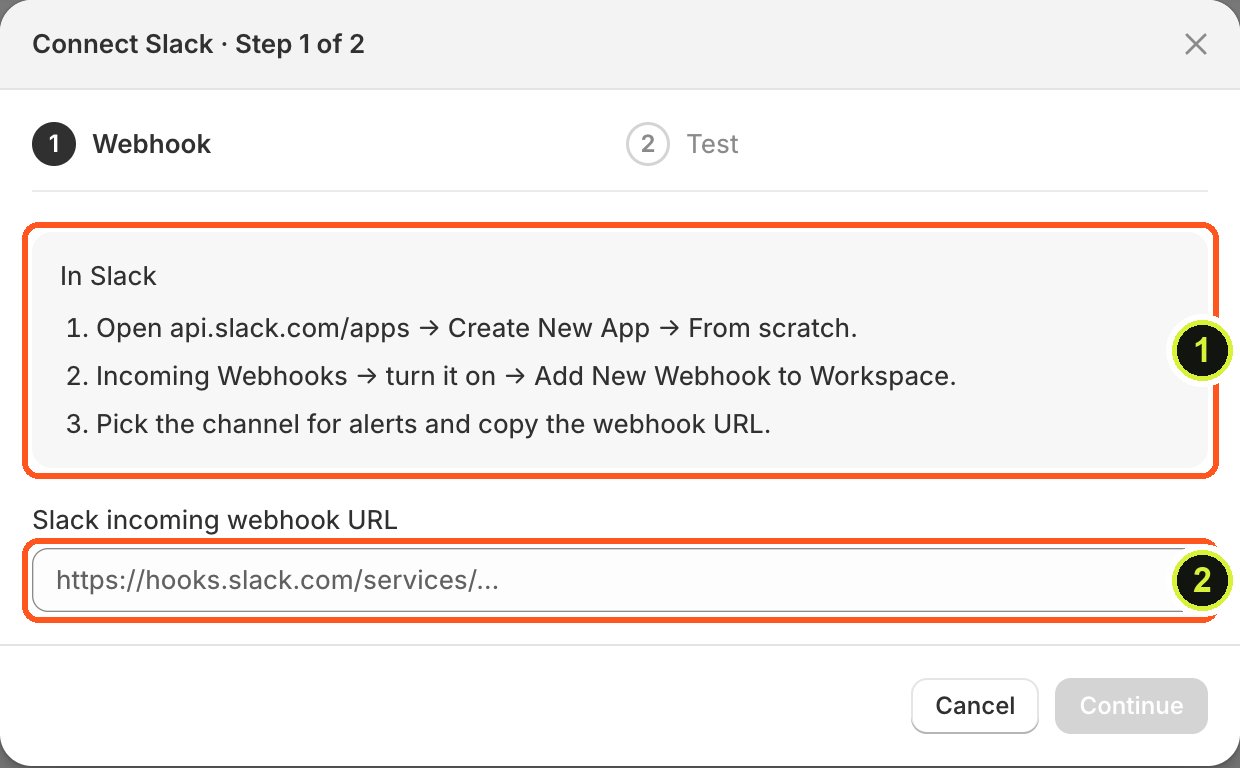 Connect Slack, Webhook step: the In Slack steps and the webhook URL field
Disconnect
On Integrations → Slack, click Disconnect and confirm. Alerts stop going to Slack. Email alerts keep working.
Good to know
- Slack alerts come on top of your email alerts, not instead. Set email alerts in Settings → Notifications. See Notifications.
- To send alerts to a different channel, disconnect and connect again with a new webhook.
- Buyers never see Slack messages.
If something goes wrong
- The test didn't arrive: check you copied the whole URL (it starts with
https://hooks.slack.com/) and the channel still exists. - Alerts stopped: someone may have removed the webhook in Slack. Make a new one and connect again.
Related
Still stuck? Email support@shopiagents.com and a person will help.