
A wholesale quote rarely lands on the first try. The buyer wants 250 instead of 100, or a better price on the big line. This page covers everything after the first draft: changes the buyer asks for, new versions, keeping your margin safe, quantity choices and add-ons, deposits, check-ins, templates and your quote numbers.
New to quotes? Start with Quotes.
Who can do it: editors and up make quotes and versions. Only admins approve a quote under your margin floor.
When a buyer asks for changes
On the quote's page, besides accepting or declining, the buyer can use Ask for changes. For each line they can type the Quantity and Your price they had in mind, add a Message, and click Send my changes.
You're told at once, and the quote shows Changes asked in the list. On the quote, the card [Buyer] asked for changes shows each line with:
- Now: your current quantity and price,
- They asked: what they want,
- Suggested price: a price that meets their ask half way, never under your margin floor, with the reason ("What they paid last time ($11.20)", "Kept at your lowest margin"). Only you and your team see it.
Click Use suggested prices or Use their changes, then Make a new version.
Your agent can also answer asks like these for you, within limits you set: how much to give each round, a walk-away floor and what to trade. Then the quote shows a Negotiation card instead. See How Ava negotiates quotes. Their changes are filled in for you to check. Nothing is sent until you click Send to buyer.
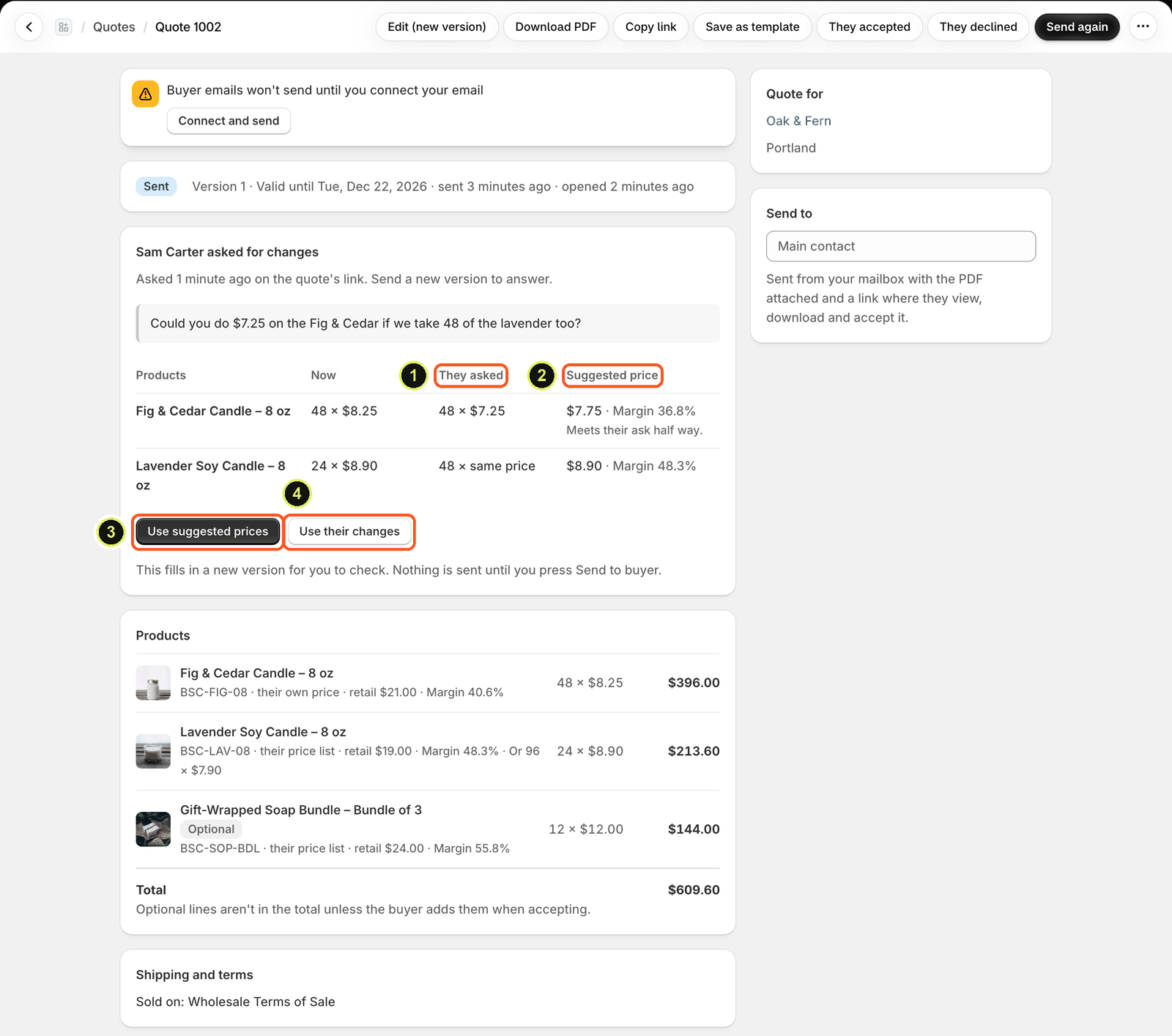 A quote after the buyer asked for changes: Now, They asked and Suggested price, with Use suggested prices and Use their changes
Versions
Every time you click Edit (new version) and save, the quote gets a new version. Earlier versions shows what changed in each one: a quantity, a price, a line added or removed ("Then in version 3: added Fig diffuser (12 × $9.00)"). Sending the new version answers the buyer's change request.
Timeline and team notes
The Timeline card shows everything that happened: each version made and sent, changes the buyer asked for, approvals, check-in and reminder emails, and the answer. Type in Add a note for your team and click Add note to leave a note. Only your team sees notes. The buyer never does.
Margin floor and an admin's OK
Stop anyone quoting below what you can afford.
- Go to Settings → Notifications and find Quote follow-ups.
- Switch on Ask an admin before a quote goes out under a margin.
- Set Lowest margin without approval, for example 25%.
Each quote line then shows its margin (Margin 32%), worked out from the product's cost in Shopify. When a version has a line under your floor:
- it shows Needs an admin's OK and a banner listing the lines under your margin,
- it can't be sent until an admin clicks Approve these prices and confirms,
- the approval is for that version only. A new version needs a new OK.
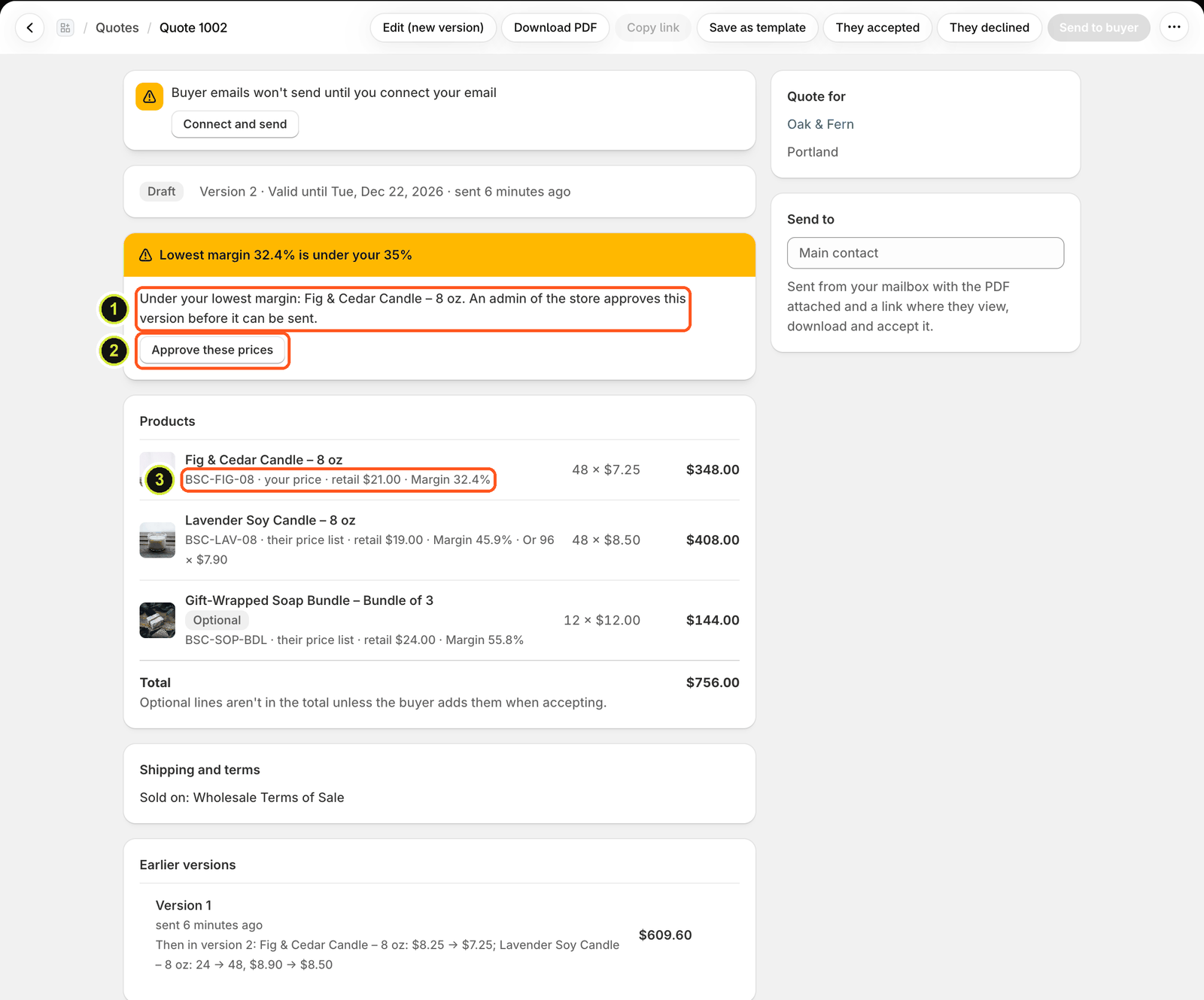 A version under the lowest margin: the banner with Approve these prices, and the margin on each line
Quantity options and add-ons
On a line in Add quote or a new version:
- Offer another quantity: add Or quantity with its own At price, for example 100, 250 or 500 units. Leave the price empty to use the buyer's own price for that quantity. The buyer picks one when they accept.
- Optional add-on (the buyer may tick it): the line isn't in the total unless the buyer adds it when accepting.
The quote page and the PDF show the choices. The order is made from what the buyer picked.
Deposits
In the Shipping and terms step, set Deposit on acceptance (a %). It's printed on the quote: "A deposit of 30% is due when the order is confirmed." On Shopify Plus, for buyers with payment terms, the Shopify draft order asks for the deposit too. Payment always goes through Shopify; nothing is marked as paid.
Check in when a buyer goes quiet
- In Settings → Notifications → Quote follow-ups, switch on Check in when a buyer hasn't answered.
- Set Days after sending.
One friendly email goes from your store that many days after a quote is sent, if they haven't accepted, declined or asked for changes. It goes once per version. Change the wording in Wholesale store → Emails to buyers → Quote check-in.
This is separate from Remind buyers before a quote expires, which still works as before.
Templates
For quotes you send again and again:
- On a quote, click Save as template.
- In Add quote, on the Products step, use Start from a template and choose one. It fills in the products, the prices you typed, the note, shipping and terms. Other prices stay the buyer's own.
Remove template removes it for your whole team. Quotes made from it stay as they are.
Quote numbers
At the top of Quotes, Quote numbers, last 90 days shows:
- Win rate (won, and lost or expired),
- Value won, from how many quotes sent,
- Time to win: days from sending to the buyer's yes, on average,
- Versions to win: how many versions a won quote takes, on average,
- how many quotes wait for an admin's OK, and how many buyers asked for changes,
- Why quotes were lost (top reasons) and Where they came from (added by you, your order form, their account, email).
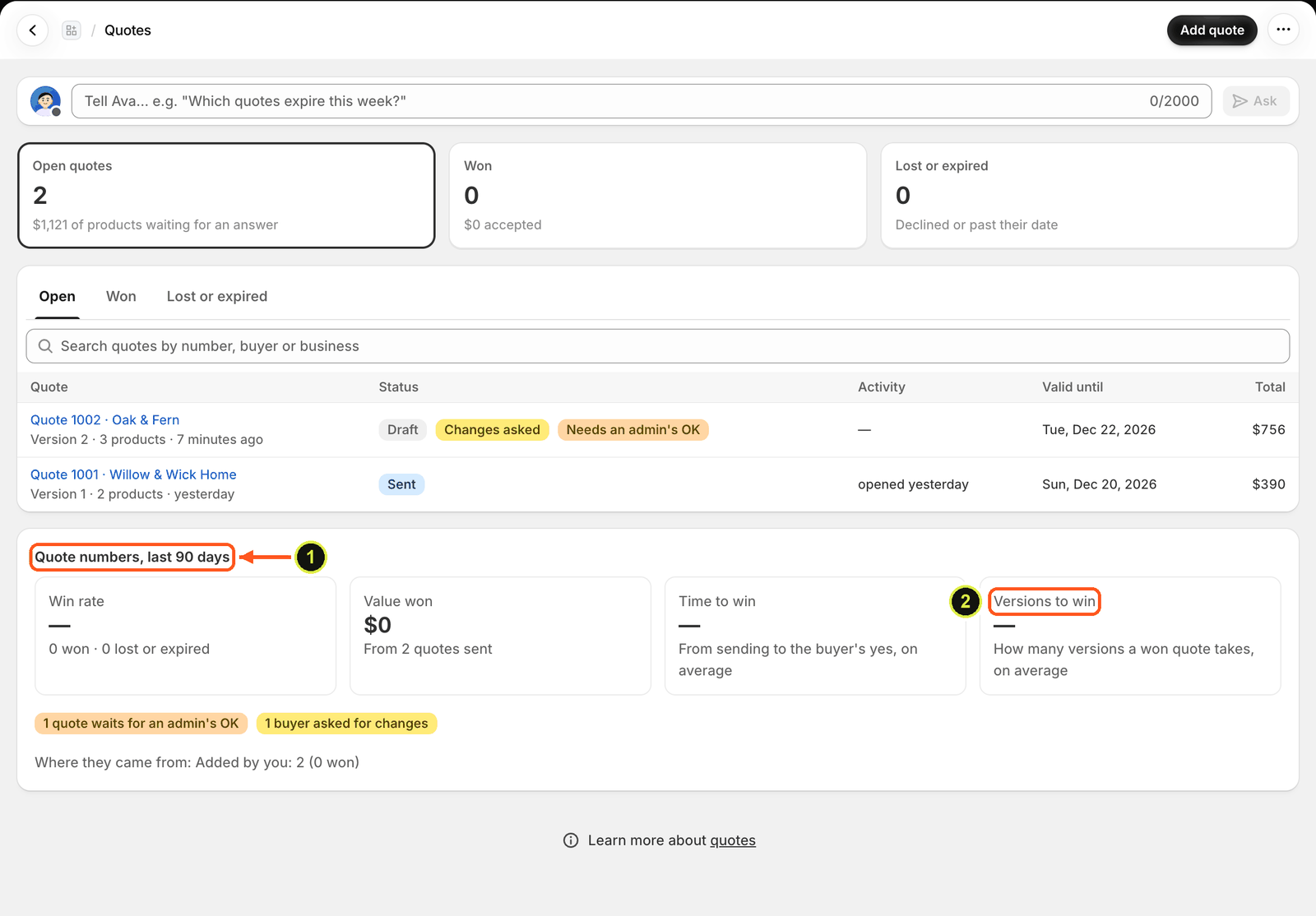 Quotes with the Quote numbers card
Quote requests by email
When a buyer asks for prices in an email, your agent reads the products. The request shows on Quotes under Quote requests by email. Click Make the quote to price it and send it, or Open the order to see the email. The quote remembers the email it came from.
In the app your agent is called Ava by default; you can rename her.
What your buyers see
Your store's quote page, in your store's name: the lines and total, any quantity choices and add-ons to tick, the deposit, Accept the quote, Decline and Ask for changes. After asking for changes, the page says you'll send a new version by email. They never see margins, suggested prices, notes or approvals.
If something goes wrong
- Send to buyer is greyed out: the version is under your margin floor. An admin needs to approve it.
- No margin on a line: the product has no cost in Shopify. Add the cost on the product in Shopify.
- The buyer's options aren't in the Wholesale page: the quote in their Wholesale page links to the full quote page, where they pick options and ask for changes.