
Shopify knows about invoices paid through Shopify. Your books also know about the cheque that arrived on Friday and the bank transfer from last week. Bring in your balances and the app uses what your books say each buyer owes: for credit limits, for holding orders from buyers who are overdue, and for knowing who not to remind.
The app only reads your books. It never writes anything to them.
Who can do it: admins.
Open the page
Go to Payments and click Accounting at the top (it's at Payments → Accounting; the Accounting card on Integrations opens the same page). Under How do you want to bring in balances? pick one:
- Connect QuickBooks Online: sign in once; balances update every hour.
- Upload a balance report: works with any accounting software. Export the aged receivables report as CSV or Excel and upload it.
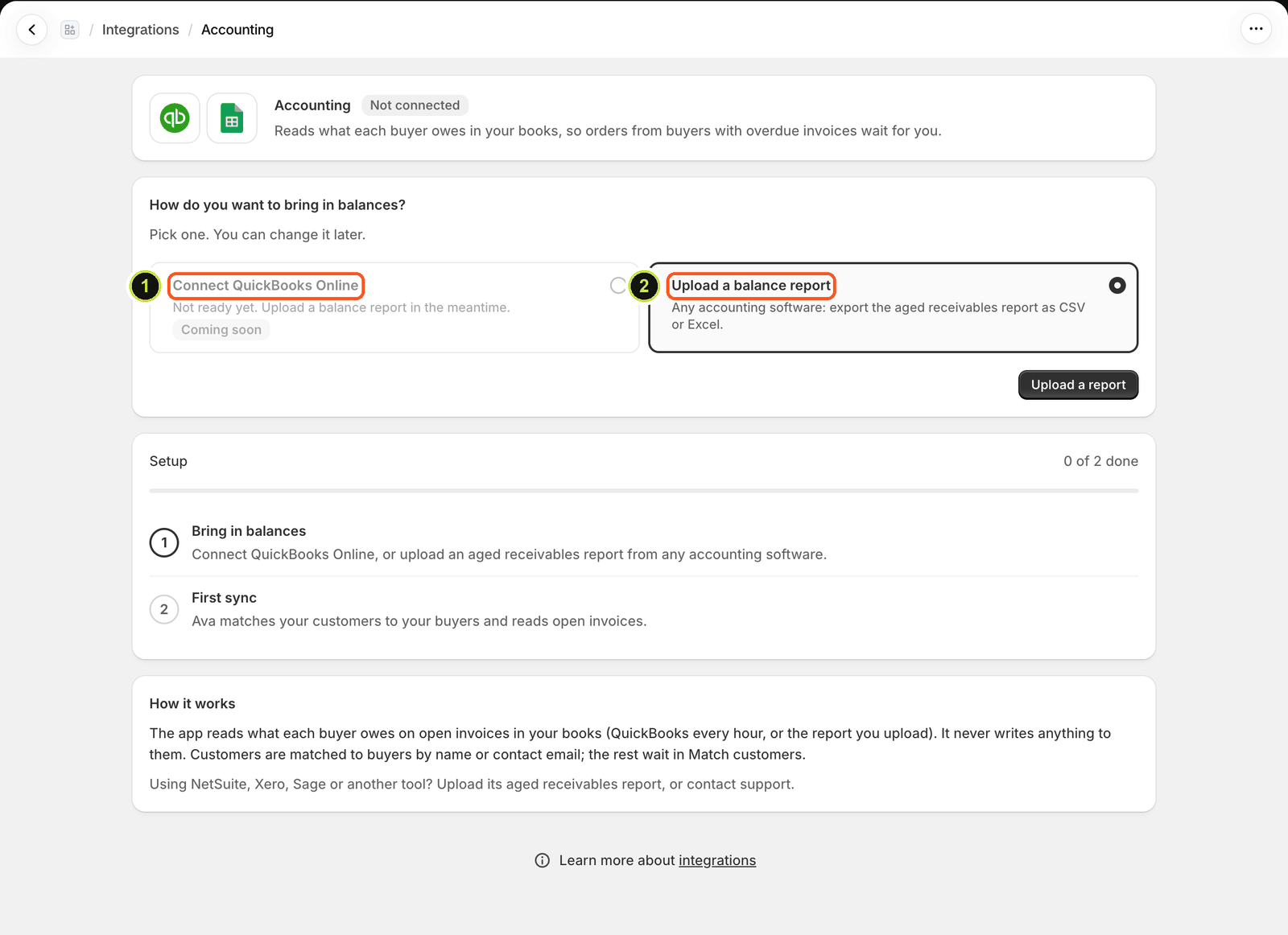 Payments → Accounting, not connected: Connect QuickBooks Online or upload a balance report
If QuickBooks shows Coming soon, upload a report in the meantime.
Connect QuickBooks Online
- Pick Connect QuickBooks Online and click Connect QuickBooks Online.
- Click Sign in to QuickBooks Online. A small window opens. Sign in and choose the company to connect. You come straight back.
- On Holds, choose whether to Hold orders from buyers with overdue invoices (below), then click Finish.
The first sync starts at once. After that, balances update every hour. Click Sync now to update them straight away.
Upload a balance report
- Pick Upload a balance report and click Upload a report.
- File: add the report (CSV or Excel, up to 10 MB). Where to find it:
- QuickBooks Desktop: Reports → Customers & Receivables → A/R Aging Summary → Excel.
- Xero: Accounting → Reports → Aged Receivables Summary → Export.
- Sage, NetSuite, Zoho and others: the aged receivables (or customer balance) report, as CSV or Excel.
- Columns: check the Header row, then tell the app which column is the Customer name and the Total owed. Under Overdue, pick one overdue column, or every aging column that's past due (1–30, 31–60 and so on). Add the Email column if the report has one. Click Save balances.
- Done: you see how many buyers matched. Click Finish.
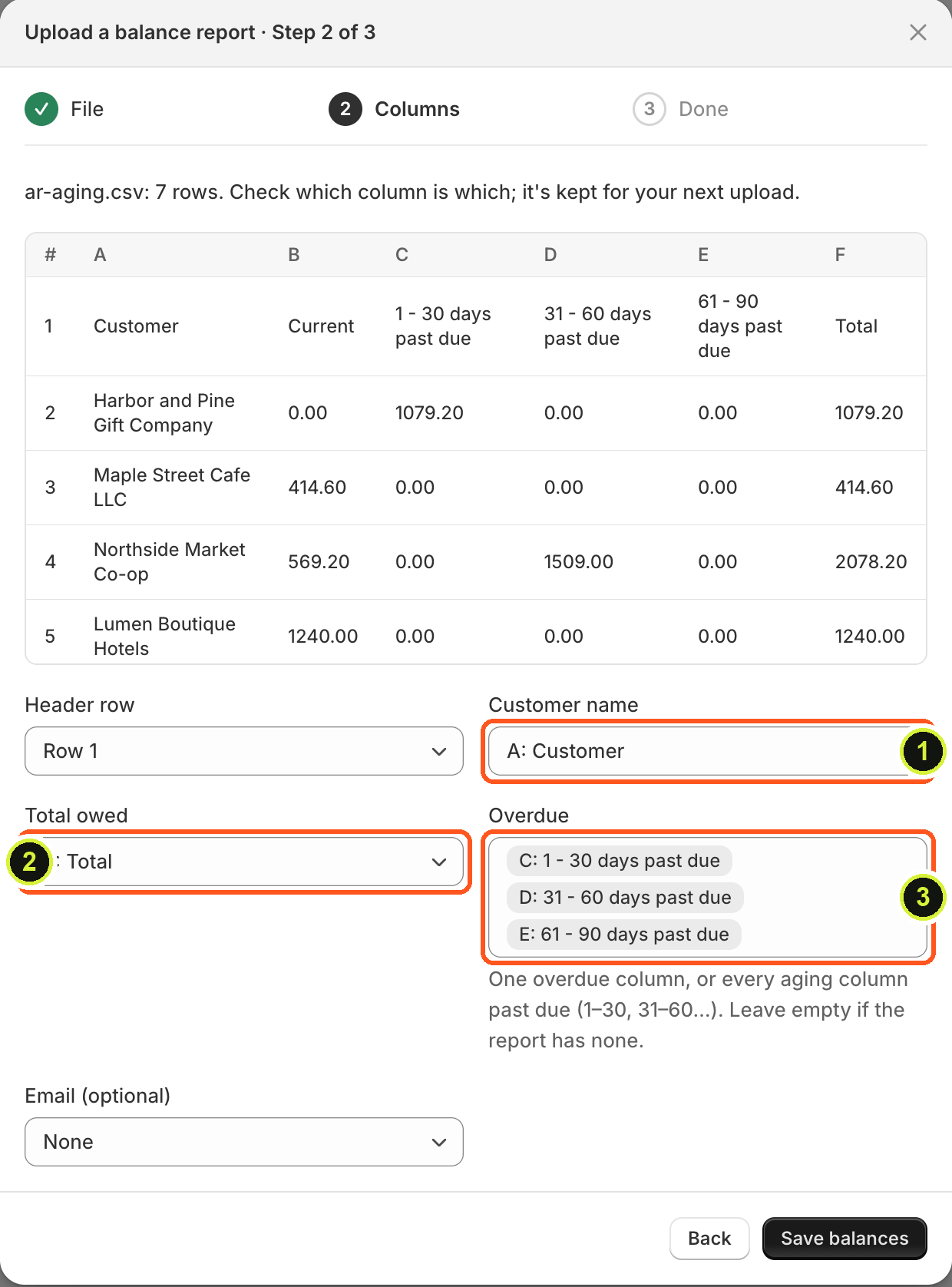 Upload a balance report, Columns step: customer name, total owed and the overdue columns picked
The app remembers your columns for next time. Upload a new report whenever your books change; the newest one replaces the last.
Match customers
The app matches each customer in your books to a buyer by name or contact email. Customers it can't match wait under Match customers.
- For each customer, pick the buyer it is under Buyer, then click Match.
- If it isn't one of your wholesale buyers, click Not a buyer.
The match is kept for every later sync or upload.
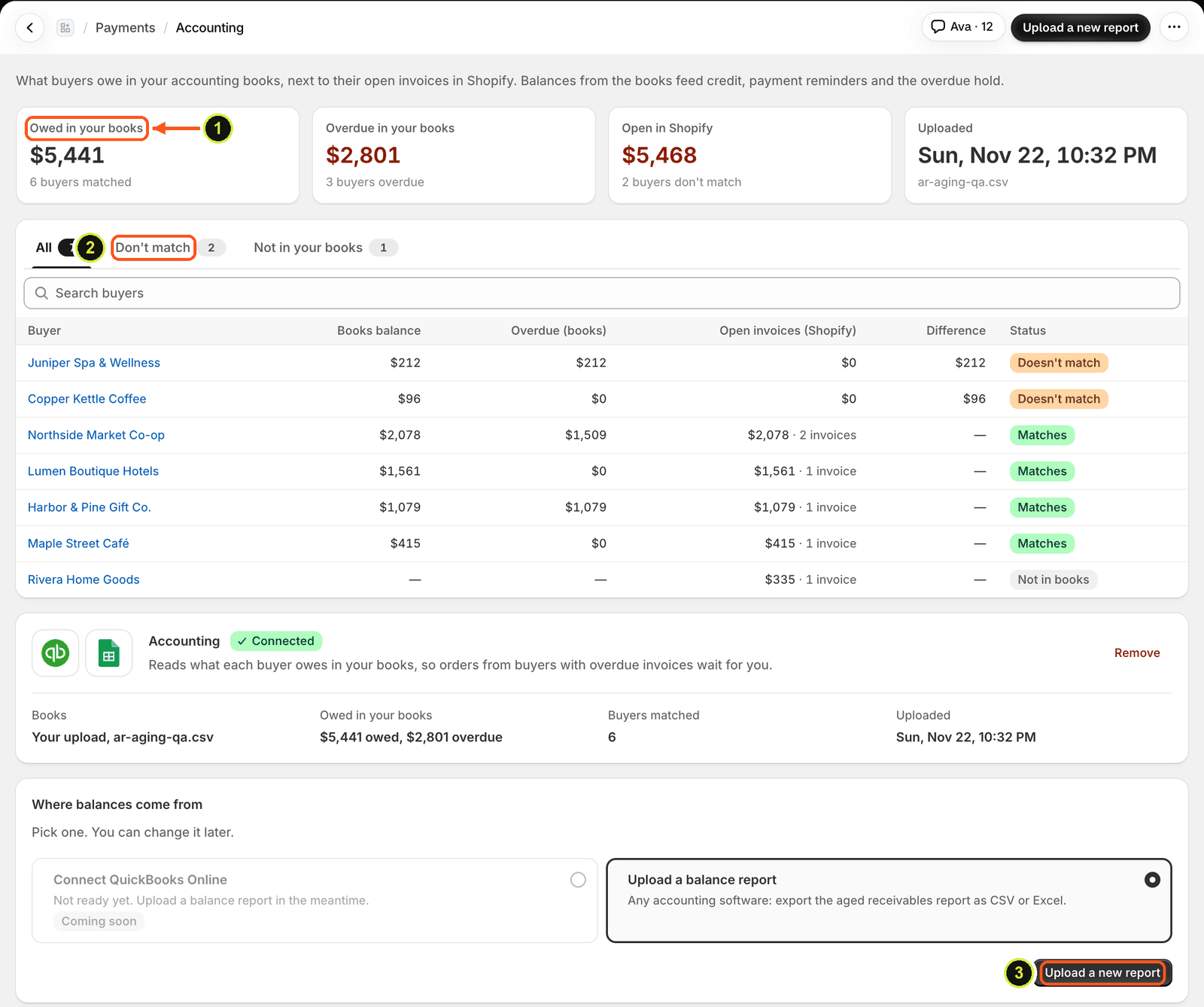 Payments → Accounting, connected: the summary and Match customers
How balances are used
- Credit limits: what your books say a buyer owes counts against their credit limit. See Credit limits and holds.
- Holds: with Hold orders from buyers with overdue invoices on, their new orders wait in Held until you release them. Turn it off to use balances for credit limits only.
- Payment reminders: reminders stop for buyers your books say are paid up. See Payment reminders and statements.
- Where you see them: on Payments → Accounting, on each buyer's page ("Owed in QuickBooks Online: $1,200, $700 overdue, synced 20 minutes ago") and on Payments.
Ask your agent about it
The Ava button at the top of Payments → Accounting lists what your agent noticed there and answers questions about the page. See Message Ava.
Change or disconnect
- Switch source: pick the other way under Where balances come from. The app asks first, then replaces the balances and matches buyers again.
- Disconnect (or Remove for an upload): balances are removed from buyers. Credit holds then use Shopify's invoices only.
- "Connect again": the QuickBooks connection expired, so balances aren't updating. Click Connect again and sign in.
What your buyers see
Nothing new. Their Wholesale page still shows their Shopify invoices. Balances from your books are for you and your team.
Good to know
- The app reads each customer's name, email, open balance and overdue amount. Nothing else from your books.
- Using NetSuite, Xero, Sage or another tool? Upload its aged receivables report, or contact support.