
Many buyers order the same things every few weeks. A usual-order email puts that order in their inbox, ready to go at their prices. They order it as is in one click, change quantities on a page, or reply "same, but add 6 more". Every answer lands on your desk as an order to check and approve.
Who can do it: editors and up.
Before you start
- Usual-order emails go out from your own email. Until it's connected, none are sent. See Connect your email.
- A buyer needs a usual order first: a few orders with a steady rhythm. See Reorder reminders.
Open the list
Go to Growth → Reorder schedule and pick Usual-order emails in Show:.
At the top you see how many regular buyers are Getting the email, Emails sent, Orders from them and Revenue from approved orders in the last 30 days. Below, each regular buyer shows their usual order and value, and when the next email goes.
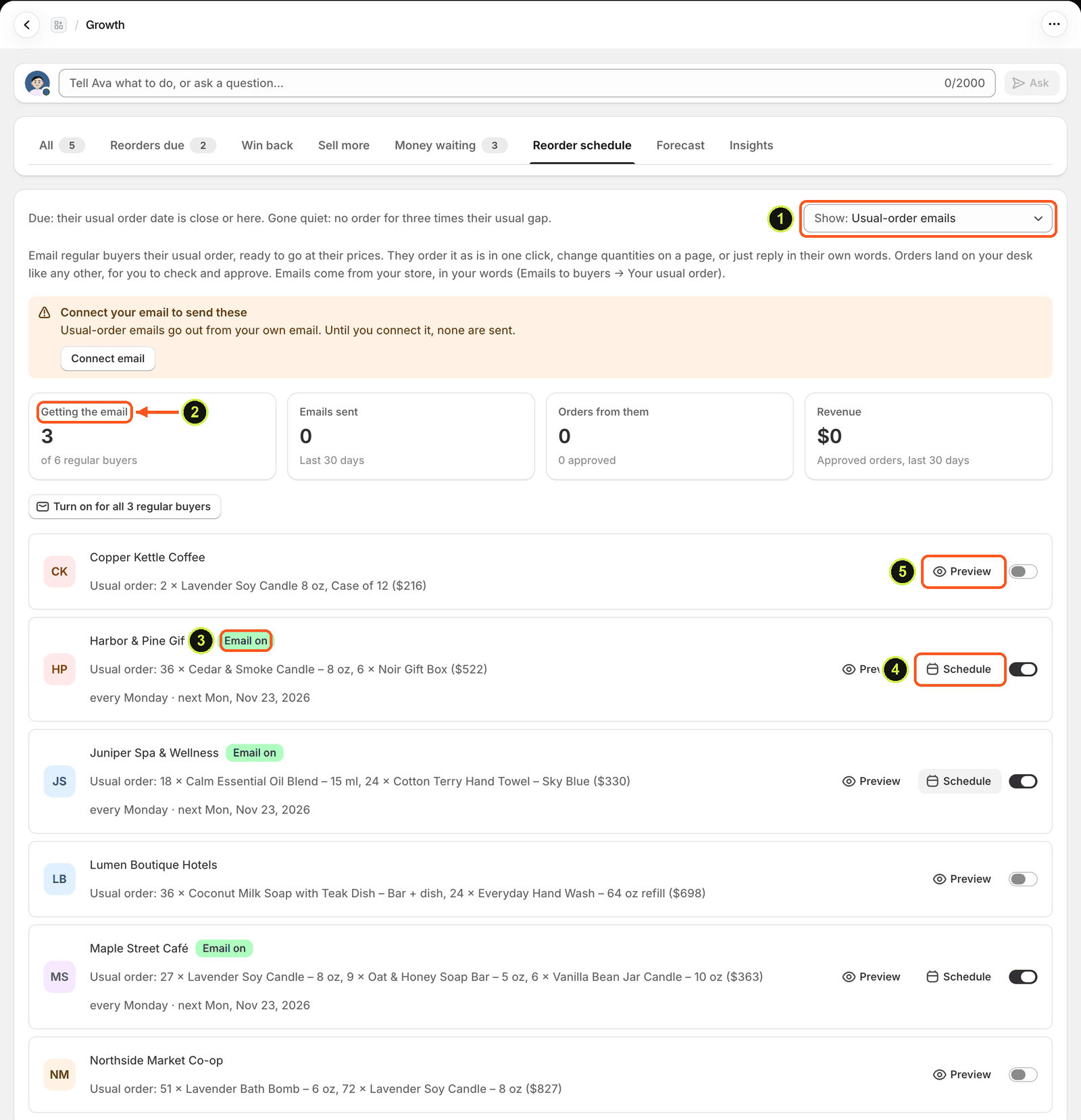 Growth → Reorder schedule, Show: Usual-order emails: the numbers, and buyers with the email on, Schedule and Preview
Turn it on
- For one buyer: switch on Usual-order email on their row. It starts on When they're due.
- For everyone: click Turn on for all [number] regular buyers, choose the schedule and confirm. Buyers who stopped these emails, or have no email address, are left out.
Choose when it goes
Click Schedule on a buyer and pick one:
- When they're due: on their own rhythm, two days before they usually order, once each time.
- Every week: on the same day each week. Pick the Day.
- Every few weeks: on a day you choose, every 2 to 8 weeks.
Emails go out in the morning.
Check the email
Click Preview on a buyer to see the email with today's usual order and prices. Nothing is sent.
To change the wording, go to Wholesale store → Emails to buyers → Your usual order. See Emails to buyers.
What your buyers see
An email from your store, signed with your store's name:
Hi Sam, Here is your usual order, ready to go at your prices: 24 × Lavender candle, 12 × Cedar candle Total: $468.00 Order as is · Change quantities Or just reply to this email in your own words, for example "same, but add 6 more", and we'll take care of it.
- Order as is sends the order straight to you.
- Change quantities opens a page with their usual products. They set quantities (0 leaves a product out), add a PO number or note, and click Send my order.
- A reply in their own words becomes an order from the products offered, with their changes.
The buttons work for 14 days and place one order, however often they're clicked. Every email has a link to stop them.
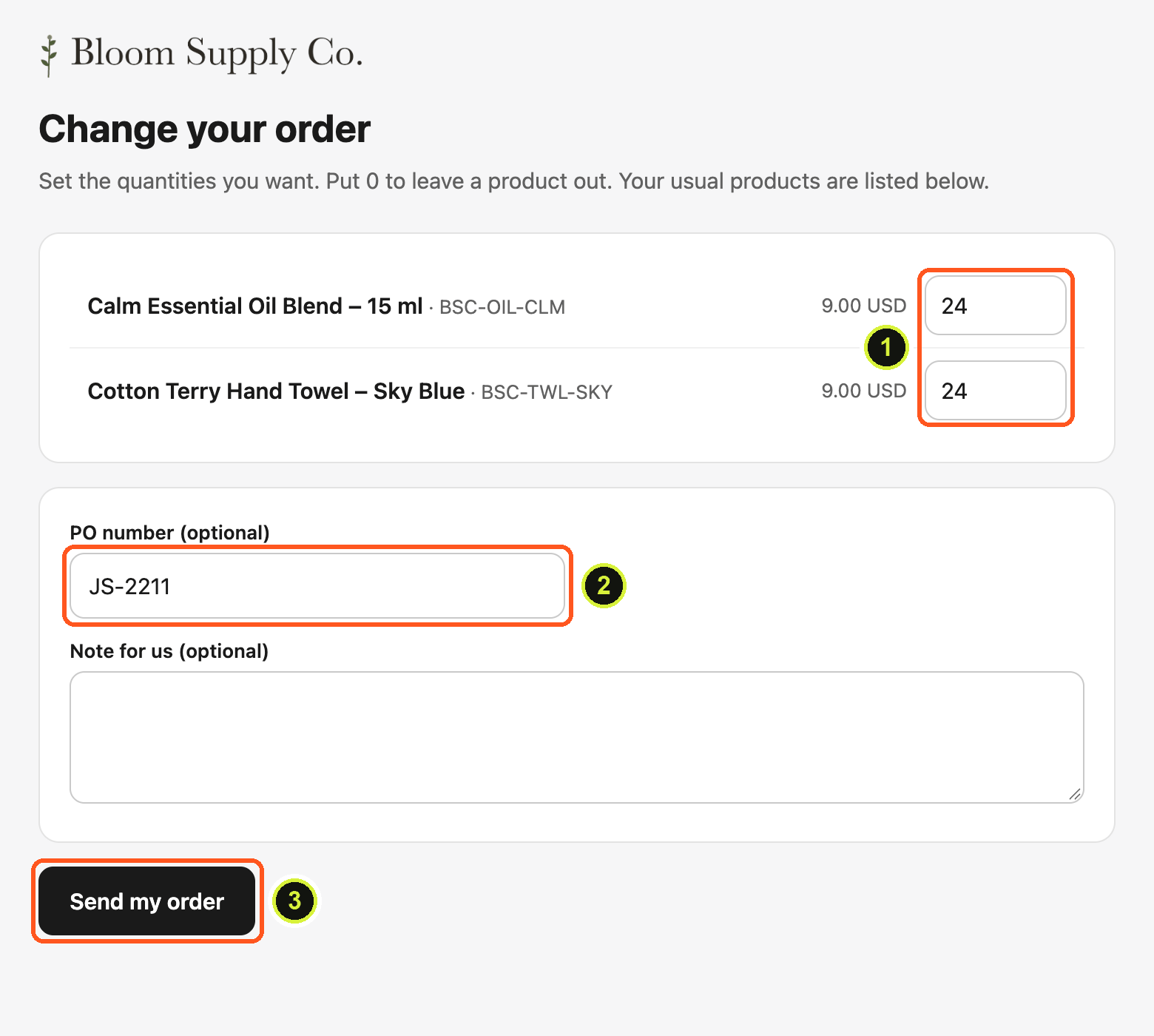 The buyer's Change your order page: quantities, PO number and Send my order
What happens next
The order lands on Orders, priced at the buyer's prices and checked like any other. You approve it into a Shopify draft order, or change it first. Nothing reaches Shopify without your OK unless an auto-approve rule matches.
Good to know
- A buyer who stopped these emails shows Stopped by the buyer. Only they can start them again, by asking you.
- A buyer who asked for no reminders shows Asked for no reminders and isn't sent these either.
- Each row shows last sent and how many orders came from it.
If something goes wrong
- "Connect your email to send these": connect your email, then emails start on the next schedule.
- A buyer isn't listed: they need a usual order first. Their orders may differ too much.
- "No email address": add a contact with an email to the buyer in Shopify.