
A shop owner browsing your store has no reason to fill in a wholesale application today rather than next month. A sign-up offer gives them one: "Apply for wholesale and get 15% off your first order." You set it once and it shows wherever someone who isn't a buyer yet looks: a bar across your store, the note on product pages, the Order wholesale button, the first screen of your application pop-up, the Wholesale page in their account and the reminder to finish an application.
When you approve an applicant, they get their own one-use discount code by email, with a link that applies it for them.
Who can do it: an admin.
Set up your offer
- Go to Wholesale store → Sign-up offer.
- Turn the offer on.
- Pick the offer type, set the details and the wording (below).
- Tick where it shows and check the preview of each place.
- Click Save. Changes reach your store within about a minute.
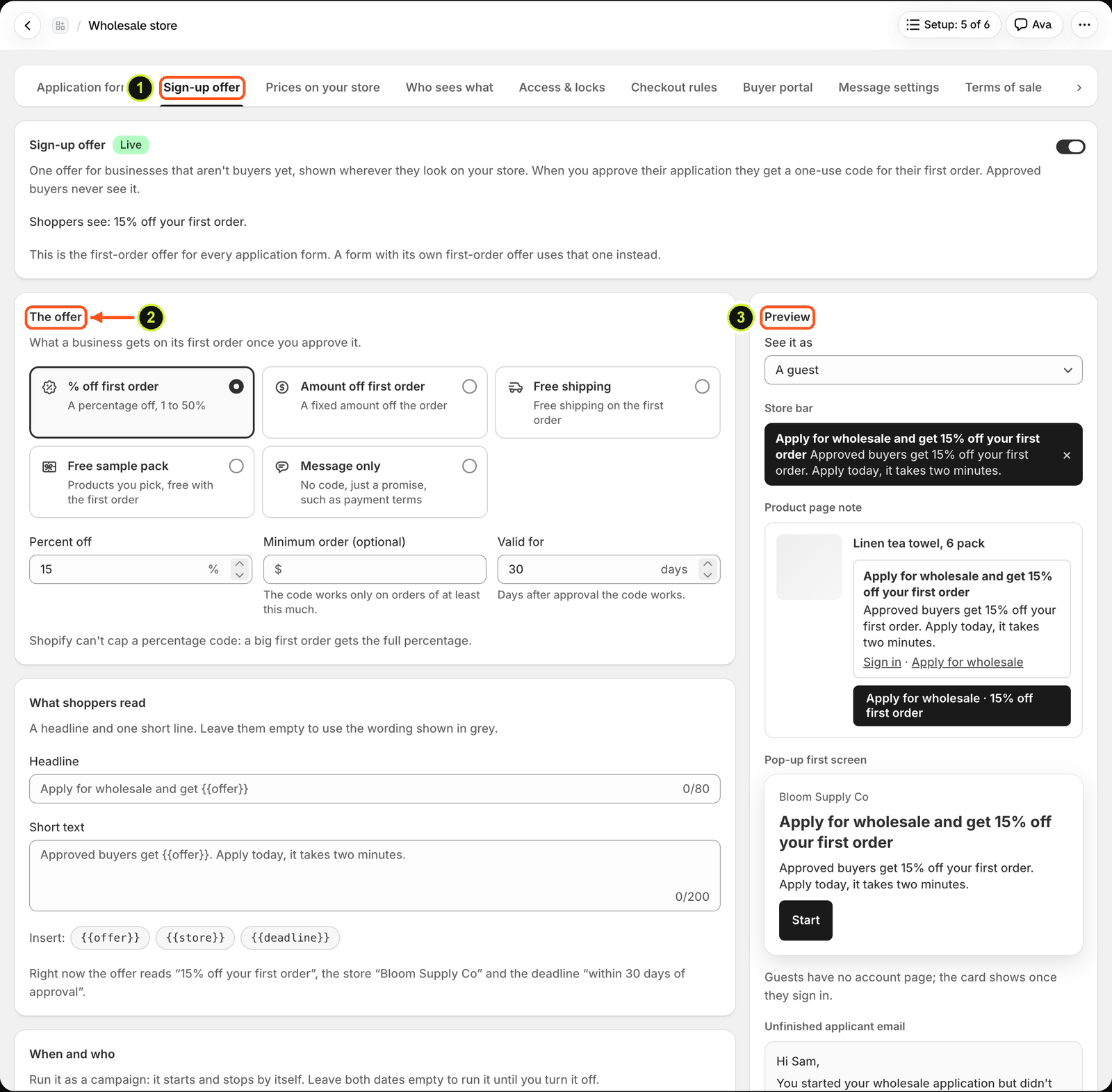 Wholesale store, Sign-up offer tab: 15% off the first order, with a live preview of the store bar
Offer types
| Type | What the approved buyer gets |
|---|---|
| % off the first order | 1 to 50% off their first order. |
| $ off the first order | A set amount off their first order, in your store's currency. |
| Free shipping on the first order | No shipping charge on their first order. |
| Free sample pack | The products you pick (up to 5) free with their first order. |
| Message only | No code, just a promise you write, for example "Net 30 terms for approved buyers". |
For a free sample pack, choose how it's given:
- Discount on the first order: the code makes the chosen products free once.
- Note for the team: no code; the approval and the welcome email say a sample pack is included, and your team adds it to the first order.
Minimum order and how long it lasts
- Minimum order (optional): the code works only on a first order of this amount or more, for example $200. Not used for Message only or a sample pack noted for the team.
- Valid for: how many days after approval the code works, from 1 to 90. After that it expires.
Headline and text
Write a short Headline (up to 80 characters) and Text (up to 200). Leave them empty to use ours. You can use these placeholders:
{{offer}}: the offer in words, for example "15% off your first order" or "free shipping on your first order of $200 or more".{{store}}: your store's name.{{deadline}}: the campaign's end date when you set one, else "within 30 days of approval" (your Valid for days).
Example: "Apply for wholesale and get {{offer}}" with "Approved buyers get {{offer}}. Apply by {{deadline}}."
Campaign dates
Set a Start date and an End date to run the offer for a set time, for example a trade-show month. Before the start it's Scheduled; after the end it stops showing on its own (Ended). Leave both empty to run it until you turn it off.
Anyone who applied while the offer was showing still gets it when you approve them, even if the campaign has ended by then.
Who sees it
Choose Guests (not signed in), Signed-in shoppers who aren't buyers or Both.
| Shopper | What they see |
|---|---|
| Guest or signed-in non-buyer (as you chose) | The offer, in every place you ticked |
| Someone with an unfinished application | The offer, plus the reminder to finish |
| Applicant waiting for your answer | "Application received" and "Your offer is saved" |
| Approved buyer | Never the promotion; their own code on the account Wholesale page until they use it |
| Declined (when they can't apply again) | Nothing |
See Who sees what on your store for how each shopper's state is worked out.
Where it shows
Tick each place you want:
- Bar across your store: a slim bar at the top of every page with the headline and an Apply link. Shoppers can close it; it stays closed for the rest of their visit. Needs the Wholesale store app embed on.
- Product page note: the offer under the "Sign in or apply for wholesale prices" note in the price block.
- Order wholesale button: for non-buyers the button reads, for example, "Apply for wholesale · 15% off first order".
- Application pop-up, first screen: the offer's headline and text replace the first screen's headline.
- Account Wholesale page and banner: a card on the Wholesale page in their customer account, and the application banner on their orders and profile pages.
- Email to unfinished applicants: the reminder to finish says "Your 15% first-order offer is waiting".
The preview next to each place shows the words as shoppers will read them.
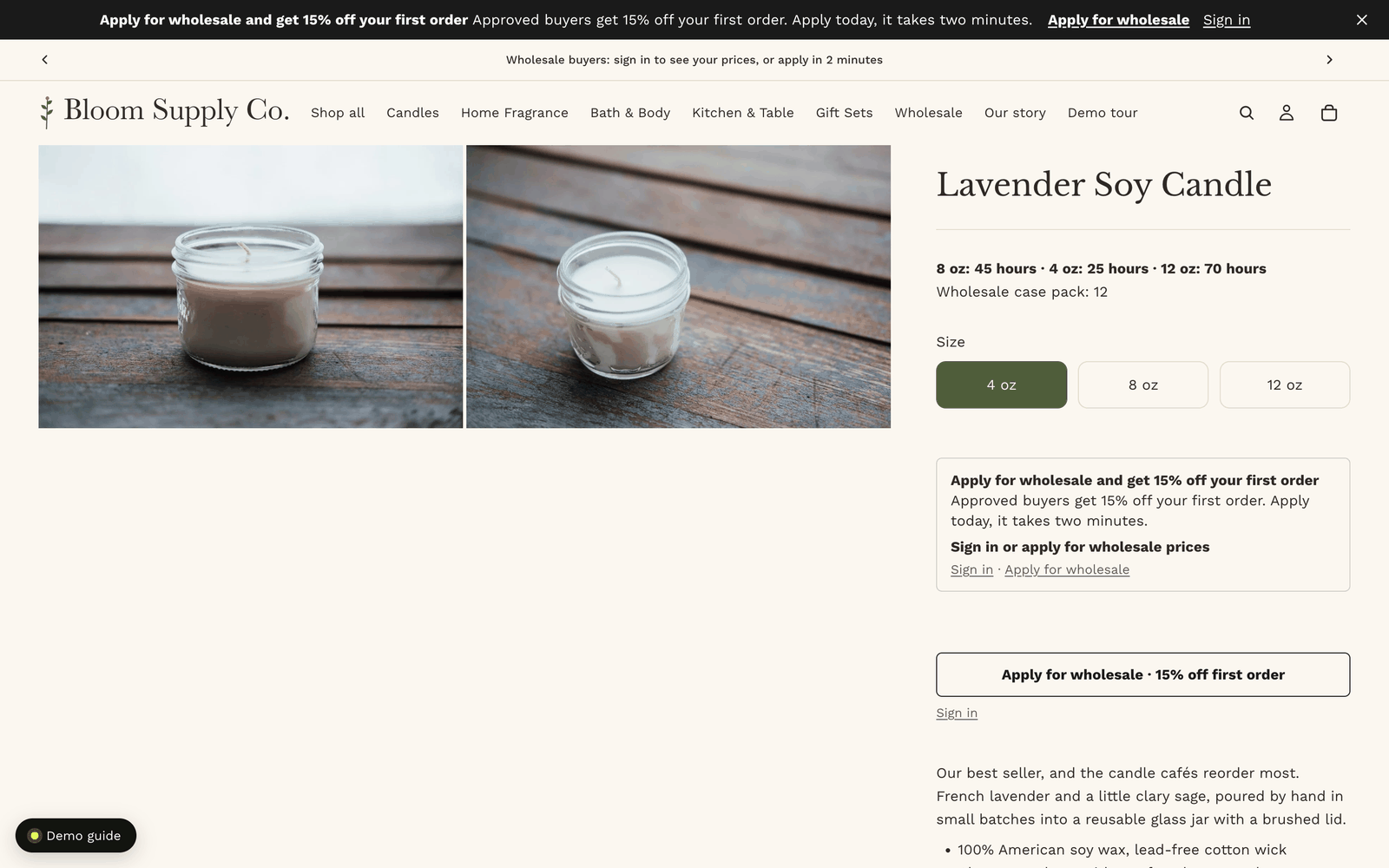 What a guest sees: the bar across the store and the note on a product page
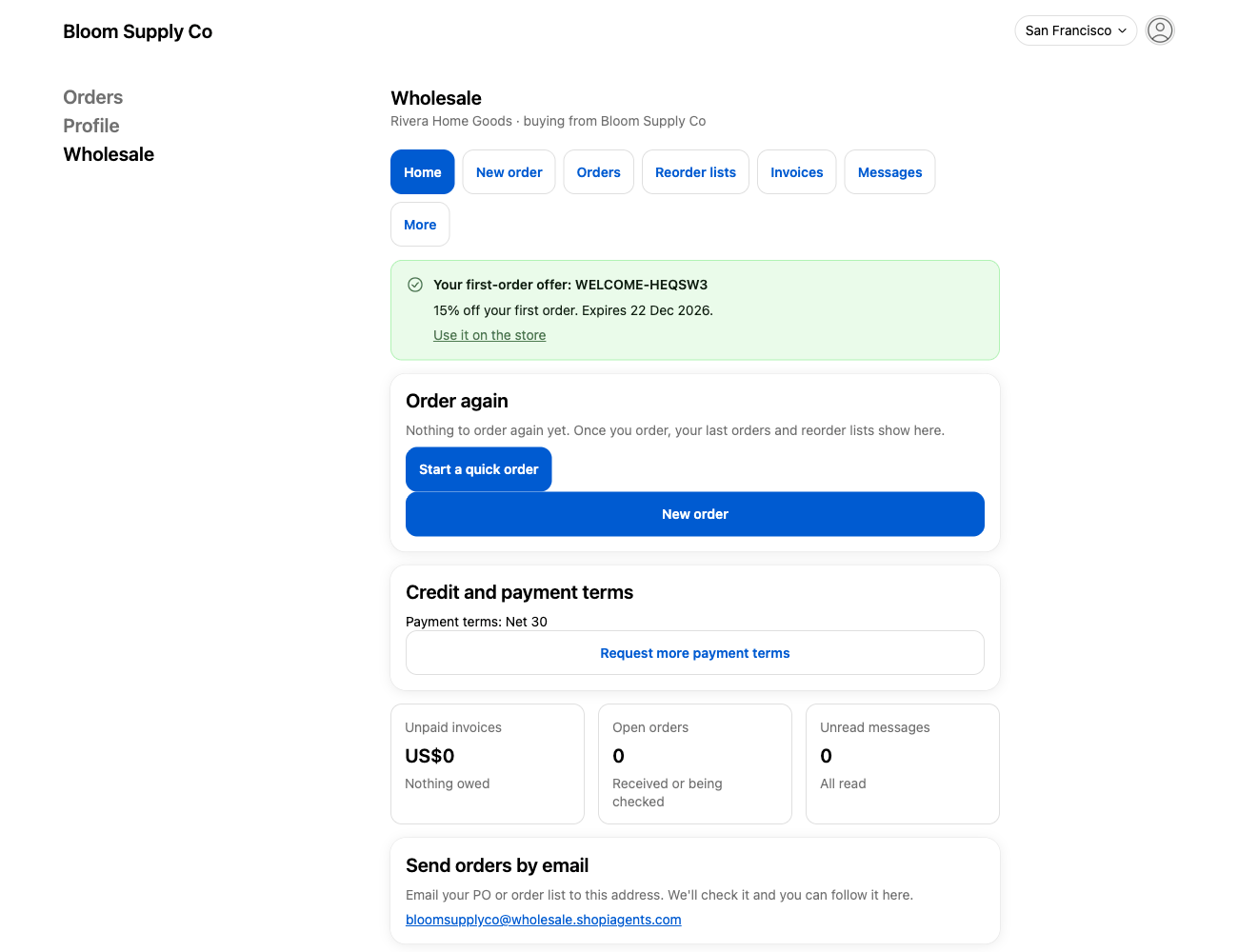 The offer card on the Wholesale page in the customer's account
What happens when you approve
- You approve the application as usual (see Approve new buyers and other requests).
- A Shopify discount code is created for that customer only: one use, on their first order, with your minimum and ending after your Valid for days.
- The welcome email shows the code and a link that applies it for them and opens your store, so they don't have to type it.
- Until they use it, the Wholesale page in their account shows "Your first-order offer: WELCOME-XXXXXX, expires …".
You can see each code under Discounts in Shopify. Message only creates no code; the welcome email repeats your message.
Your form's offer and the welcome offer
- An application form with its own first-order offer (in its After applying panel) keeps using it. See After someone applies.
- Every other form, including the simple form, uses the sign-up offer.
- The welcome offer in Wholesale store → Emails to buyers still covers buyers you add yourself. For applicants, the sign-up offer wins.
The code goes out with the welcome email, so keep the welcome email on. See Emails your buyers get.
See how it's doing
Go to Buyers and click Applications. Once an offer has run, the Sign-up offer results card shows, for the period picked at the top:
- Applied with the offer: applications sent while it was showing.
- Codes given and Codes used.
- First-order revenue: the total of orders that used a code.
- Approved and Applications a week, each against the time before the offer started.
The list below shows the latest codes, who got them, when they expire and the order that used each one.
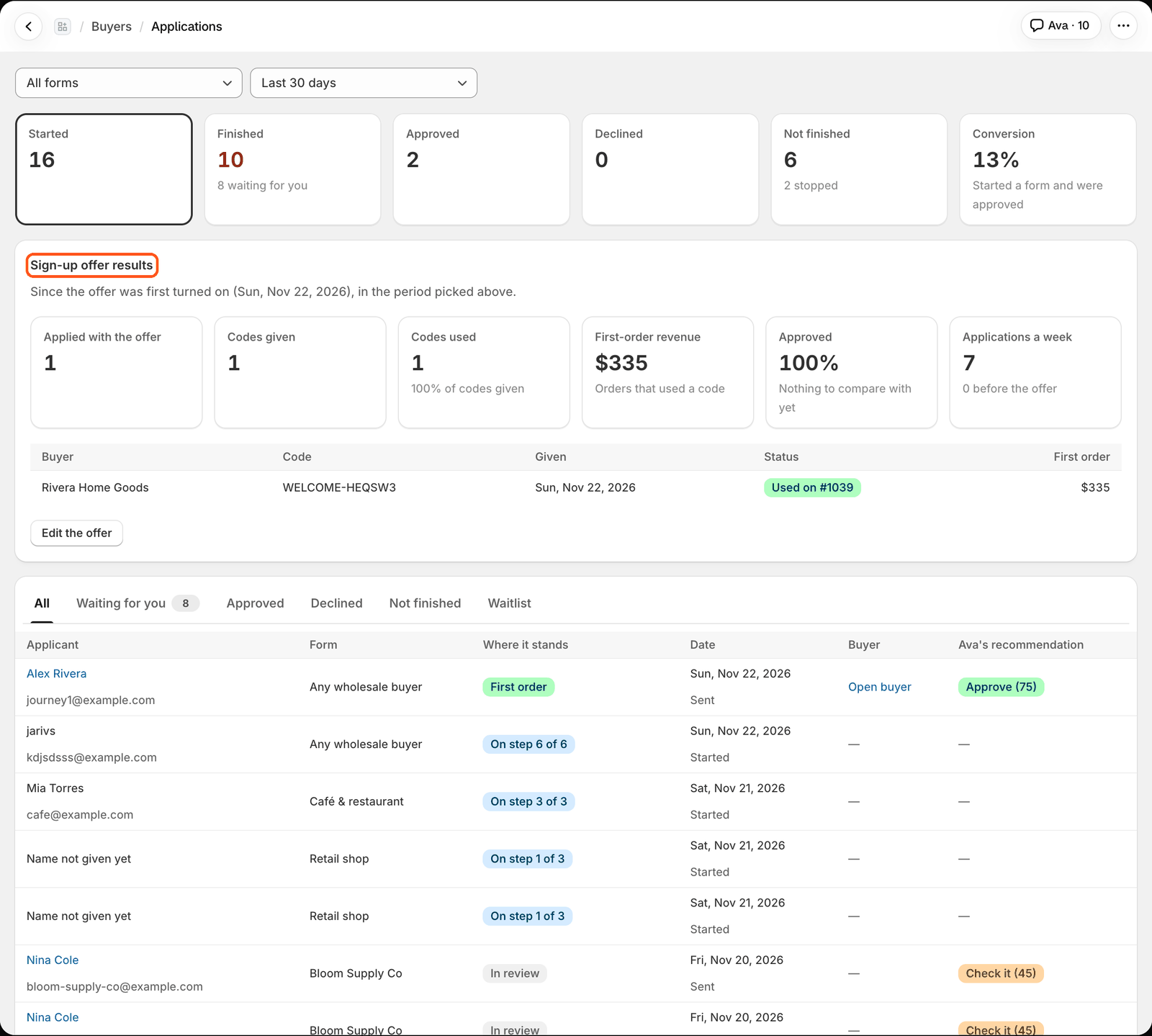 Applications: the Sign-up offer results card
Ask your agent
You can ask your agent, in the app or in Claude and ChatGPT, "How is my sign-up offer doing?" or "Change the sign-up offer to free shipping until the end of the month". It says what will change and waits for your yes. If applications drop, or many people stop part way through the form, your agent may suggest an offer behind the Ava button on the Applications page. In the app your agent is called Ava by default; you can rename her.
What your buyers see
Your offer, in your store's words and your store's name. Nothing mentions an agent, AI or ShopiAgents.
Good to know
- A Shopify percentage code can't be capped at an amount: 15% off is 15% of the whole order (above your minimum, if you set one).
- A code works once, for that customer only, and only while signed in with the email they applied with.
- Codes don't combine with your other order or product discounts; they do combine with shipping discounts.
- The bar, notes and button change only where the Wholesale store app embed and the product blocks are on. See Add the wholesale store to your theme.
If something goes wrong
- The offer options are greyed out: your plan doesn't include first-order offers (see Pricing).
- The bar doesn't show: check the campaign dates, that Bar across your store is ticked, that the app embed is on, and that you're looking as a guest or non-buyer (buyers never see it). A shopper who closed it won't see it again on that visit.
- No code in the welcome email: check the welcome email is on, the offer type isn't Message only, and the application form doesn't have its own offer.
More fixes: Buyer sign-in, portal and application problems.