
Your reps are out visiting shops. They need to know what a buyer pays, what they owe and what they usually order, and they need to take the order on the spot. Sales reps get their own page on their phone for that. They don't need a Shopify staff account and never see your admin. Their orders come to you marked with their name.
Who can do it: admins add, change and deactivate reps. Editors and up can give buyers to a rep.
Before you start
Sales reps has its own place in the app menu: Sales reps. If you don't see it, check Pricing and that the feature is on in Settings → Features. For the team overview, targets, bonuses and statements, see the Sales reps guides.
Add a rep
- Go to Sales reps and click Add rep.
- Under Rep details, enter their Name and Email (they sign in with this address). Phone is optional. Under Type, choose Employee or Independent agent.
- Under Invitation, leave Email them the link to their page ticked.
- Click Add rep.
What a new rep can do (place orders, send quotes, see money owed), how their orders are approved, their commission % and the morning email all start from Sales reps → Settings. Change any of them for one rep on their Settings tab.
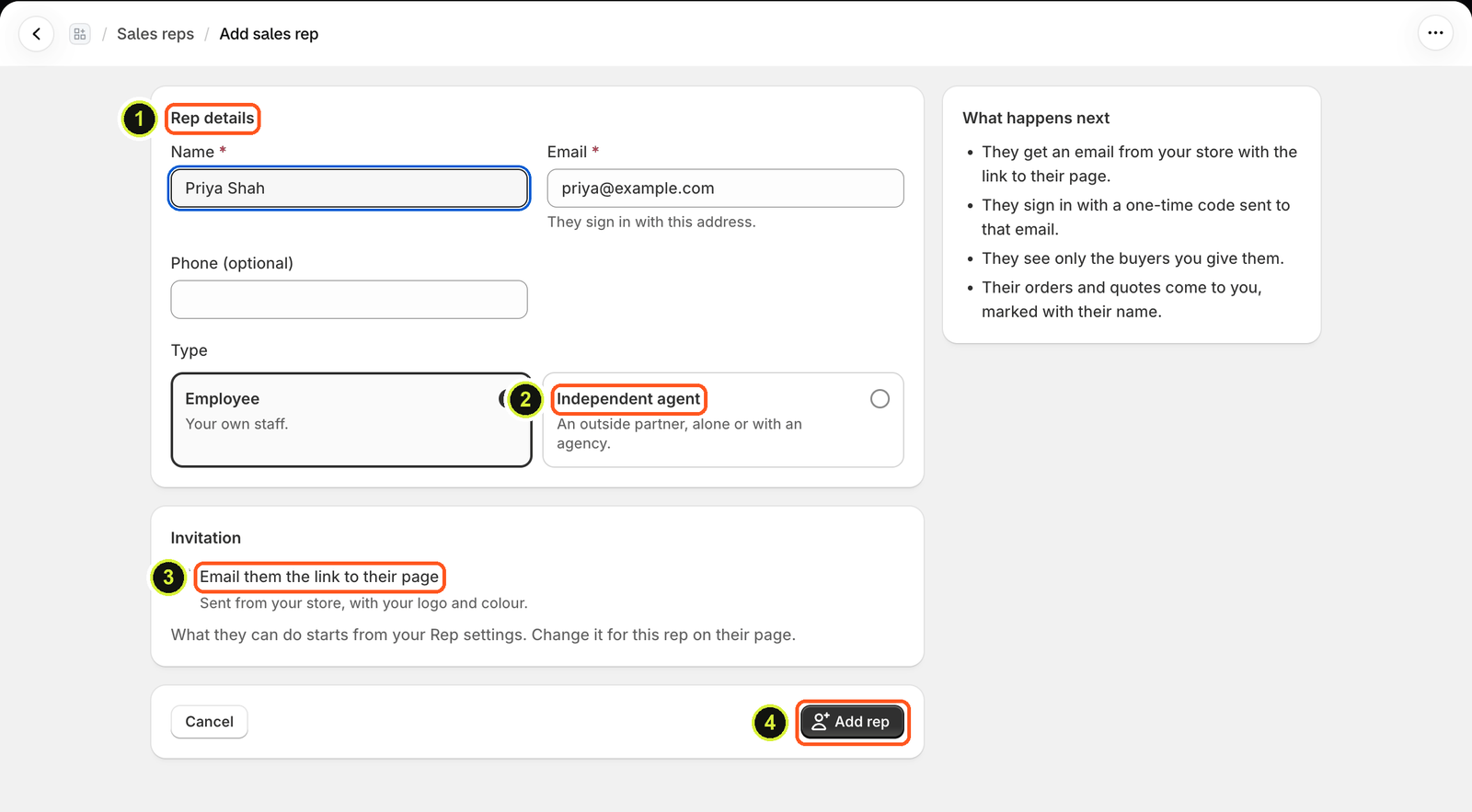 Sales reps → Add rep: rep details, type and the invitation
The rep gets an email from your store, with your logo and colour, and the link to their page.
Give a rep their buyers
A rep only sees the buyers you give them.
- On the rep's page: open the Buyers tab, search and pick buyers. You can add several at once. To take one off, click the remove button next to them.
- On a buyer: set Handled by on the buyer's page. Only that rep sees the buyer. See Who handles each buyer.
The Buyers list has a Handled by column and filter. Orders can filter by rep too.
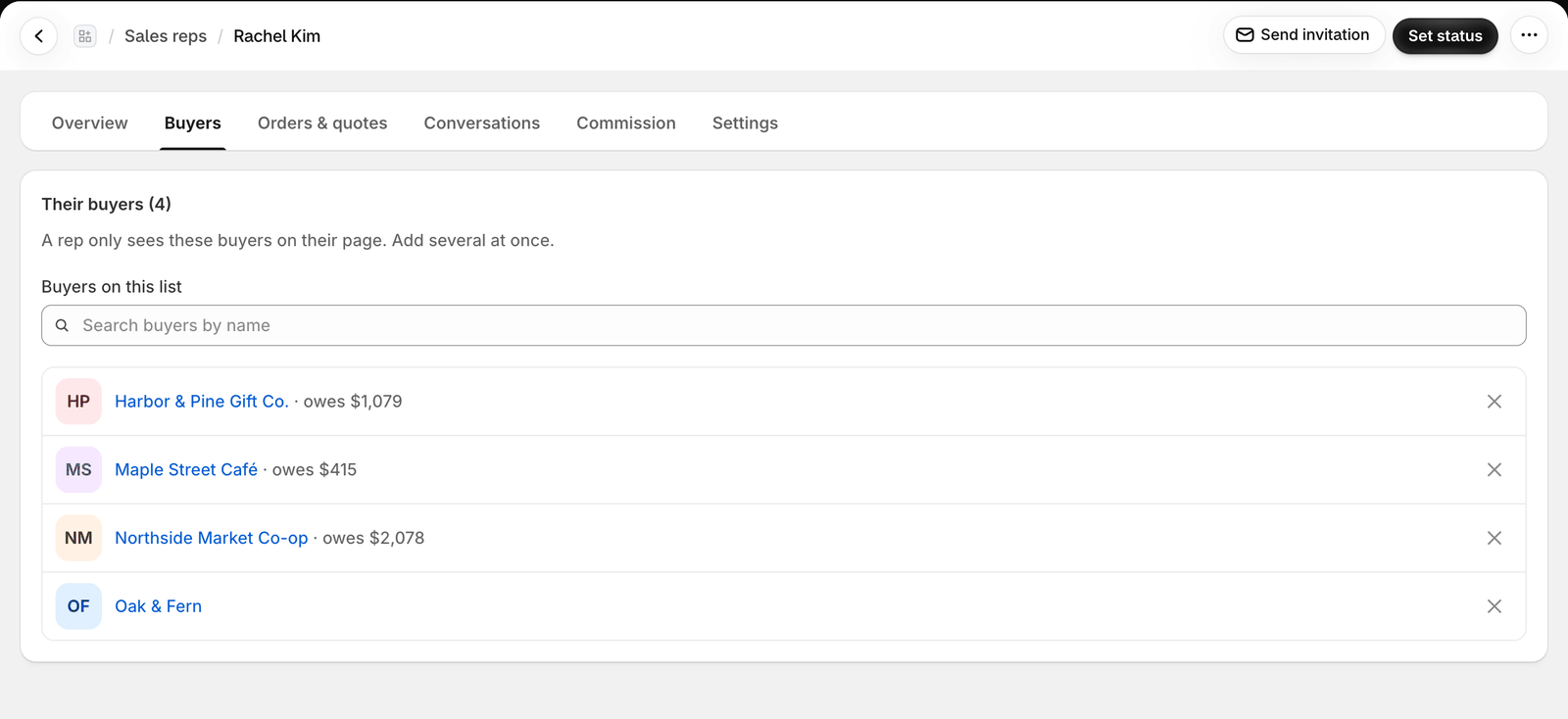 A rep's page in the app: the Buyers tab with their buyers and what each owes
The rep's page and sign-in
Your reps' page has its own link, shown under Your reps' page on Sales reps → Reps. Click Copy link to send it yourself, or Show QR code.
To sign in, a rep enters the email you added them with and taps Email me a code. They get a one-time code and link by email, valid for 15 minutes. There is no password.
On their page, a rep sees My buyers, with what each owes, who is overdue, who is Due to reorder and who is On hold – don't take an order. Opening a buyer shows:
- their Price list, Credit available and Usual order,
- their Last orders, with orders Waiting for the store,
- their Open quotes,
- New order, Send quote and Sign up a new shop.
Their page also has Your target (when you show it), Messages with your team, Updates, Commission and New shop with their own sign-up QR code. For a tour of every part, see What your sales reps see.
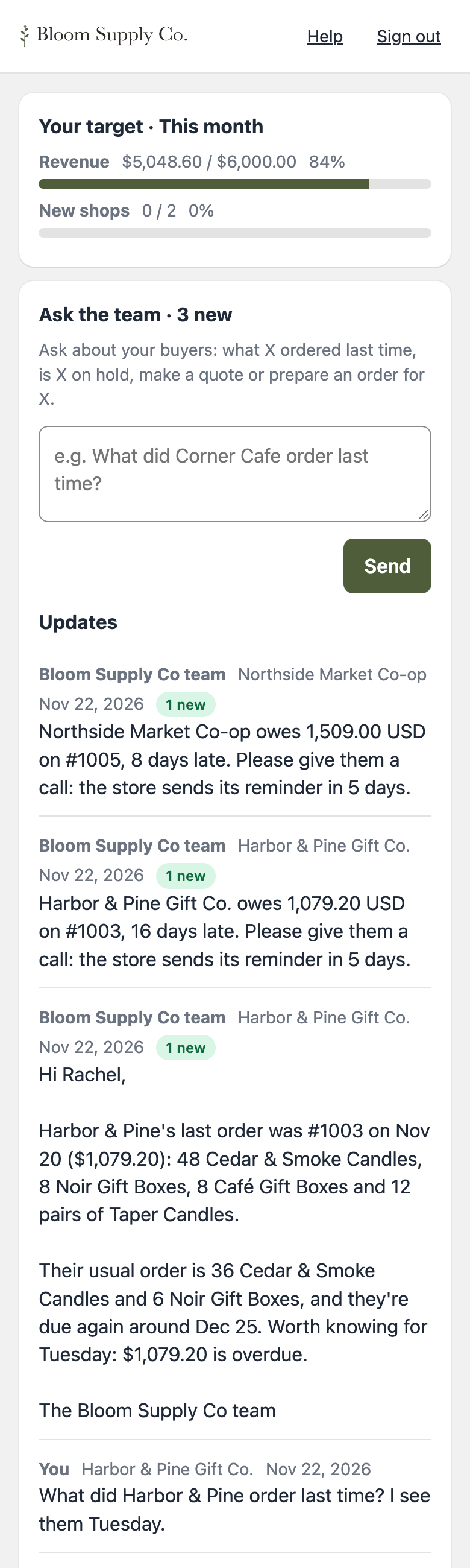 The rep page on a phone: Your target, messages and Updates from the store's team
The page shows your store's name, logo and colour. It never mentions your agent or AI.
Rep orders and approval
- On a buyer, the rep taps New order, searches products by name or SKU and adds them. Each line shows Their price.
- They can add a PO number, Notes for the store and where to Deliver to, then tap Send order to the store.
- The order lands on your Orders page marked with the rep's name.
With Wait for approval, you check and approve it like any other order. With Go straight through, it goes into Shopify once every check passes. A buyer on credit hold always waits for you.
Send quote makes a quote at the buyer's prices and sends it from your store. Sign up a new shop opens your wholesale application form; the application is marked as the rep's, and approving it gives that buyer to the rep.
Orders a rep emails from their own address are marked as theirs too, and always wait for you.
The morning email
With Send them a morning email on, the rep gets an email at about 7 in the morning, in your store's time zone, on days with something in it:
- buyers Due to reorder,
- buyers who've Gone quiet,
- buyers On credit hold, don't take an order,
- Quotes expiring soon.
It comes from your store, with a link to their page.
Your reps list and sales
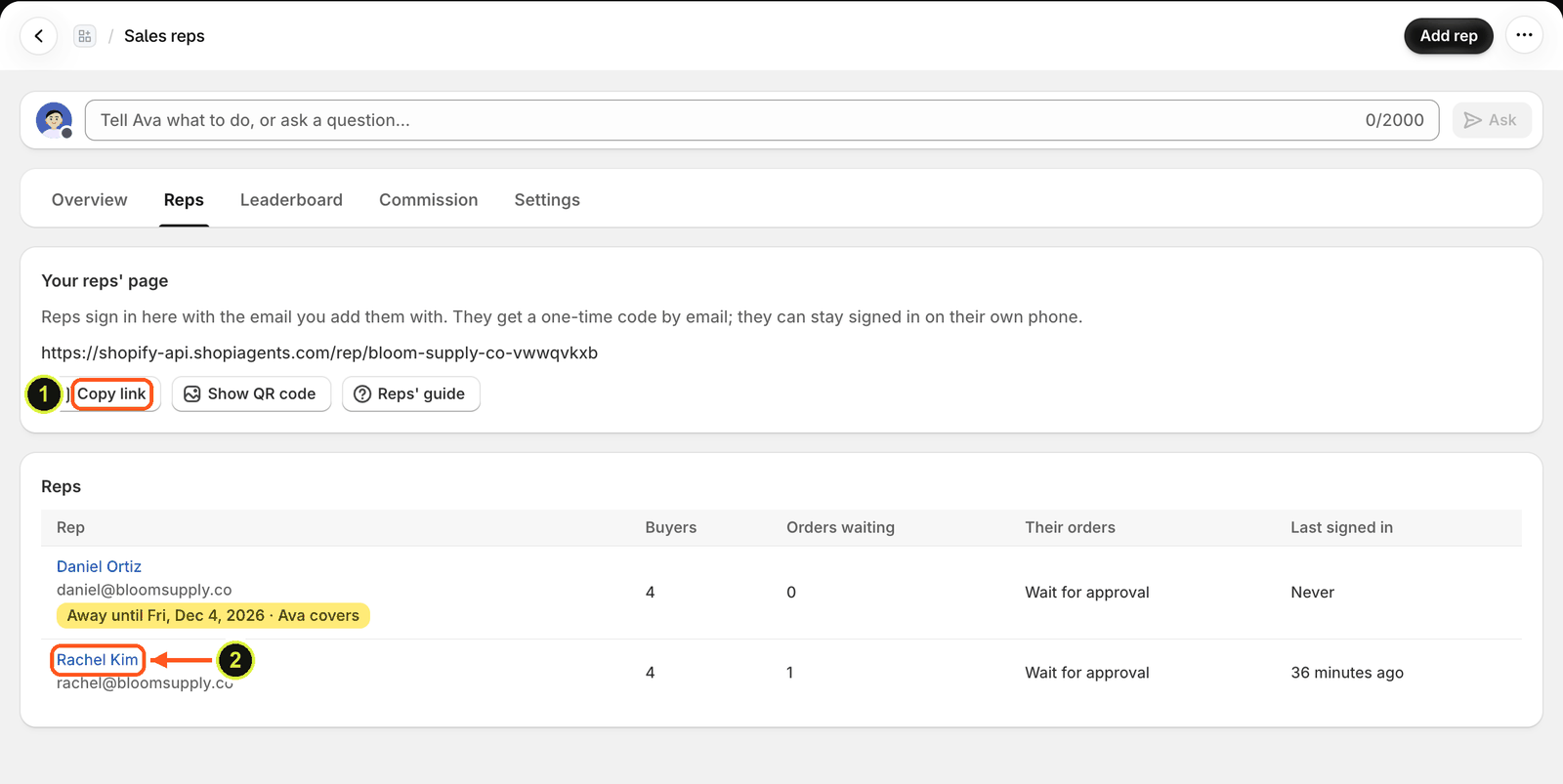 Sales reps → Reps: your reps' page link with Copy link and QR code, and the reps list
Sales reps → Reps lists every rep with their buyers, orders waiting, how their orders are approved and when they last signed in. A rep who is away shows the dates and that your agent covers them.
Sales, commission owed and statements are on Sales reps → Commission. See Commission statements and clawbacks.
When a rep is away or leaves
Open the rep and click Set status: Away between two dates, or Left. Your agent covers their buyers meanwhile. See When a rep is away or leaves. Send invitation emails them the link again.
What your buyers see
Nothing changes. A rep's order or quote reaches the buyer from your store, like any other.
If something goes wrong
- The rep didn't get a code: check the email address on their rep page. Codes go to that address only.
- "No buyers are assigned to you yet": give them buyers on their page in the app.
- "This rep is deactivated" or they can't sign in after leaving: click Set status and choose Active.