
Everything your agent noticed, every question it has and every decision it's waiting on is an update card with its own buttons. You answer on the card, and it closes everywhere.
Who can do it: everyone can read updates and reply in a thread. Answer buttons need the role for what they do (approving an order needs Approver or Admin). Snooze and dismiss need Editor or up.
In the app your agent is called Ava by default; you can rename her.
Where updates show
- In her conversation, pinned first in Messages: each update arrives as a message with its buttons. See Message Ava.
- On Home, under Needs your attention: sorted into Today, This week and Later, with a button on each line such as Approve 3 orders or Answer Ava. Click a line to open the whole card in a window.
- On your agent's page, on the Updates tab: the full list, with filters (below). All of Ava's updates on Home takes you there.
- On the page it's about, in the panel the Ava button opens. See Message Ava.
They're the same updates in every place. Answer one in her conversation and it's gone from Home and the list too.
The Updates tab
Open your agent's page and choose Updates. A line at the top says when your agent last checked your email and how many things need you, with a link to her conversation. Four cards filter the list:
- Needs you: decisions waiting for you, such as orders to approve, applicants and credit holds.
- Ava's questions: things your agent asks before it acts.
- Money at risk: what's overdue, and how many of those wait on your answer.
- Done by Ava this week: what it handled on its own.
Her daily briefing sits folded at the bottom of the tab. See Your daily briefing.
The list of updates
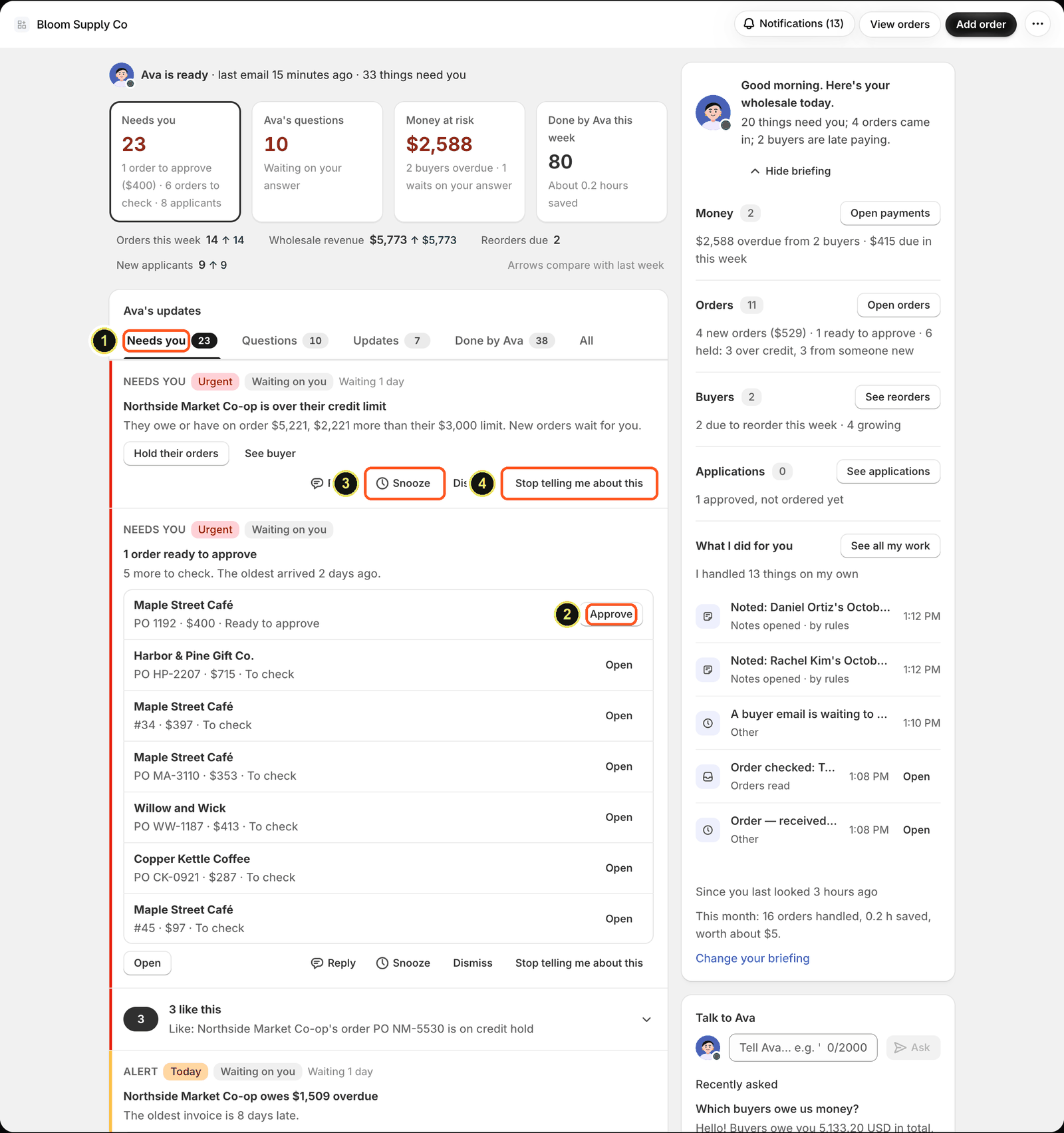 Ava's updates: the Needs you tab with a grouped orders card, Approve and the card buttons
The tabs sort the list: Needs you, Questions, Updates (things worth knowing), Done by Ava and All.
Each card shows:
- what kind it is (Needs you, Question, Alert or Update), how urgent it is, and how long it has waited,
- what happened, in one or two sentences,
- the buttons to act on it. Orders that are ready come grouped in one card, each with Approve or Open.
Under every card:
- Reply opens a conversation with your agent about that card (below).
- Snooze hides it until Tomorrow, for 3 days or until Next week. It comes back then if it still needs you.
- Dismiss closes it.
- Stop telling me about this asks first, then mutes that kind of update. Undo it in Settings → Notifications.
Similar cards fold together ("3 like this"). Click to open them.
Questions your agent asks
Some things your agent won't do without asking. It writes a question card with buttons that act straight away:
| Question | Buttons |
|---|---|
| Did Northside Market pay #1005 another way? | Paid another way · Not paid: send a reminder · Ask me in 3 days |
| Who sent order PO WW-1187? | One button per likely buyer ("It's Willow & Wick Home") · Open the order |
| Is "Lav candle 8oz" your Lavender Soy Candle? | Yes, that's the product · Open the order |
| An application has mixed signals | Open to approve · Ask them for more · Decline |
| Which buyer is Bay Leaf Deli in your books? | One button per likely buyer · Not one of my buyers |
| A sales rep asks something only you can decide | Send my answer to the rep · Open the conversation |
Buttons that email a buyer ask you to confirm first. You can add a short note before you answer.
"Paid another way": buyers who pay by cheque or transfer
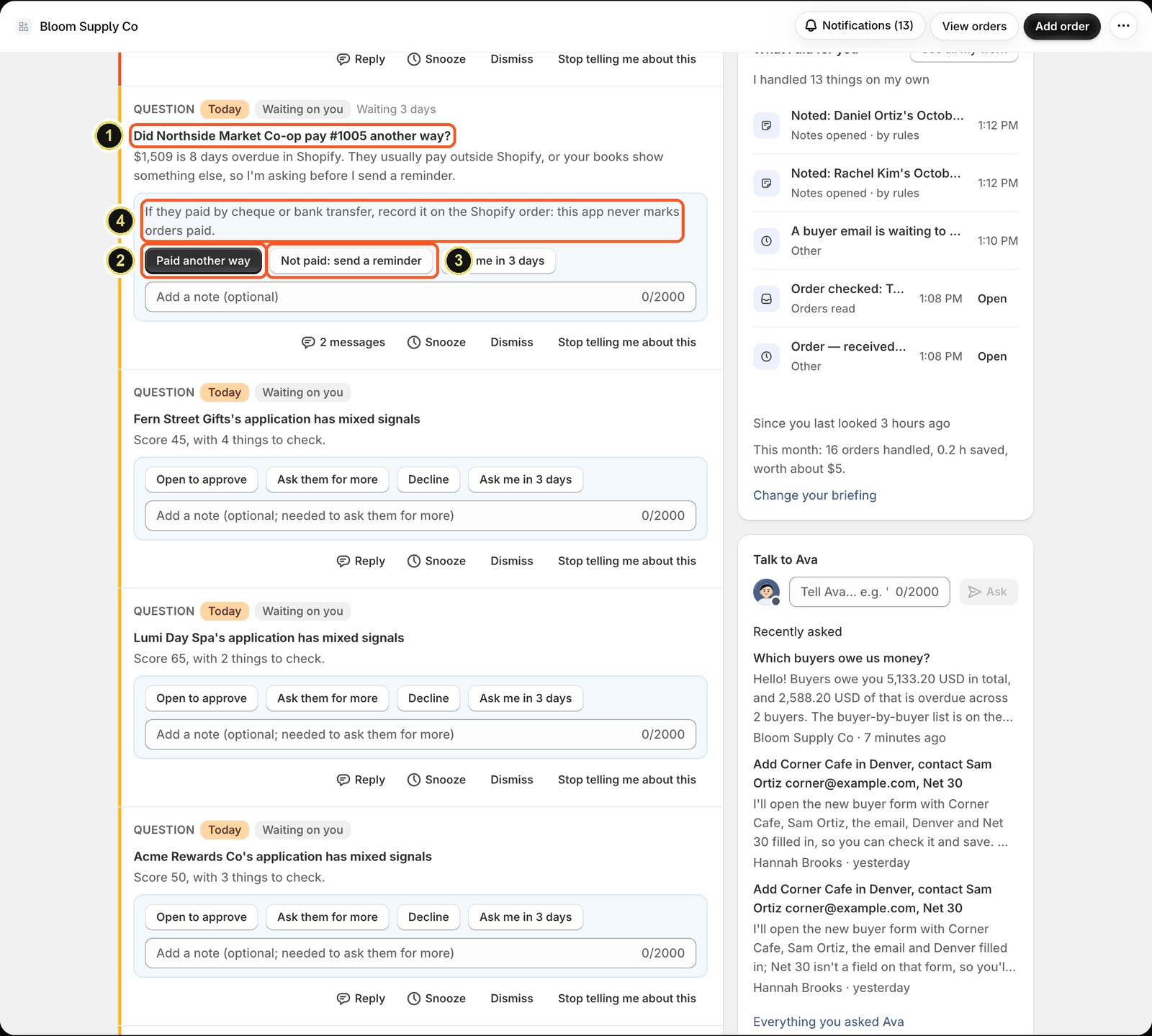 A question card: did Northside Market pay another way, with the three answers
Some buyers pay outside Shopify, by cheque or bank transfer. Turn on Pays outside Shopify on the buyer's page (Settings tab). Before your agent sends that buyer a payment reminder, it asks you first.
- Paid another way stops the reminders for that invoice and opens the order in Shopify. This app never marks an order as paid. Record the payment on the Shopify order yourself. Once Shopify shows it paid, the question closes on its own.
- Not paid: send a reminder sends the reminder now. Your agent won't ask again about that invoice for 14 days.
- Ask me in 3 days brings the question back later.
Your agent also asks when your accounting balance and Shopify disagree about what a buyer owes. See Balances from your books.
Reply to your agent on a card
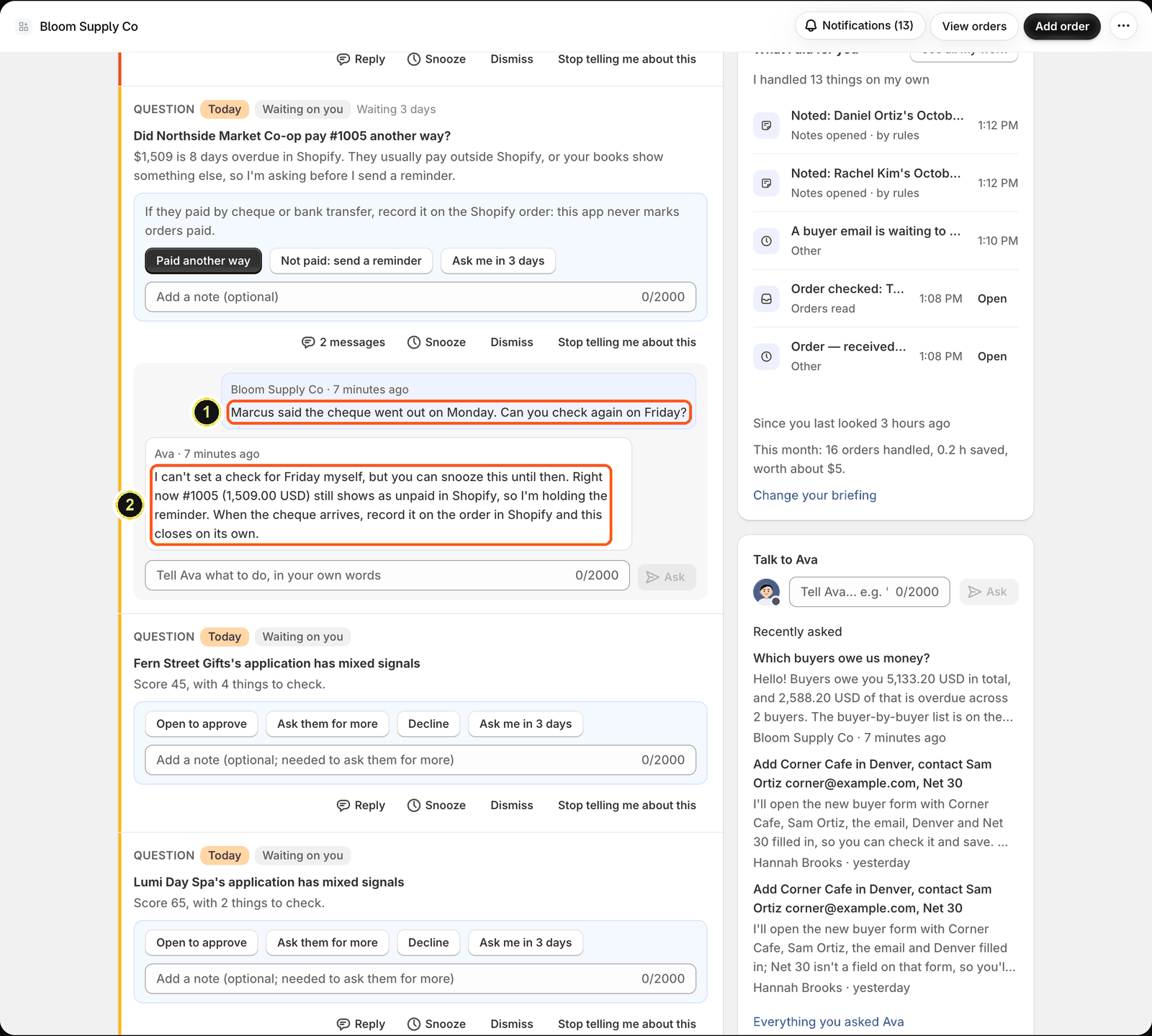 A card's conversation: the owner's message and the agent's answer, with the box to reply
Click Reply (or the message count) to write to your agent about that card in your own words, for example "Marcus said the cheque went out on Monday." It answers right there. If it suggests doing something, it asks you before it does it. Your reply is only between you and your agent; the buyer sees nothing.
Update emails
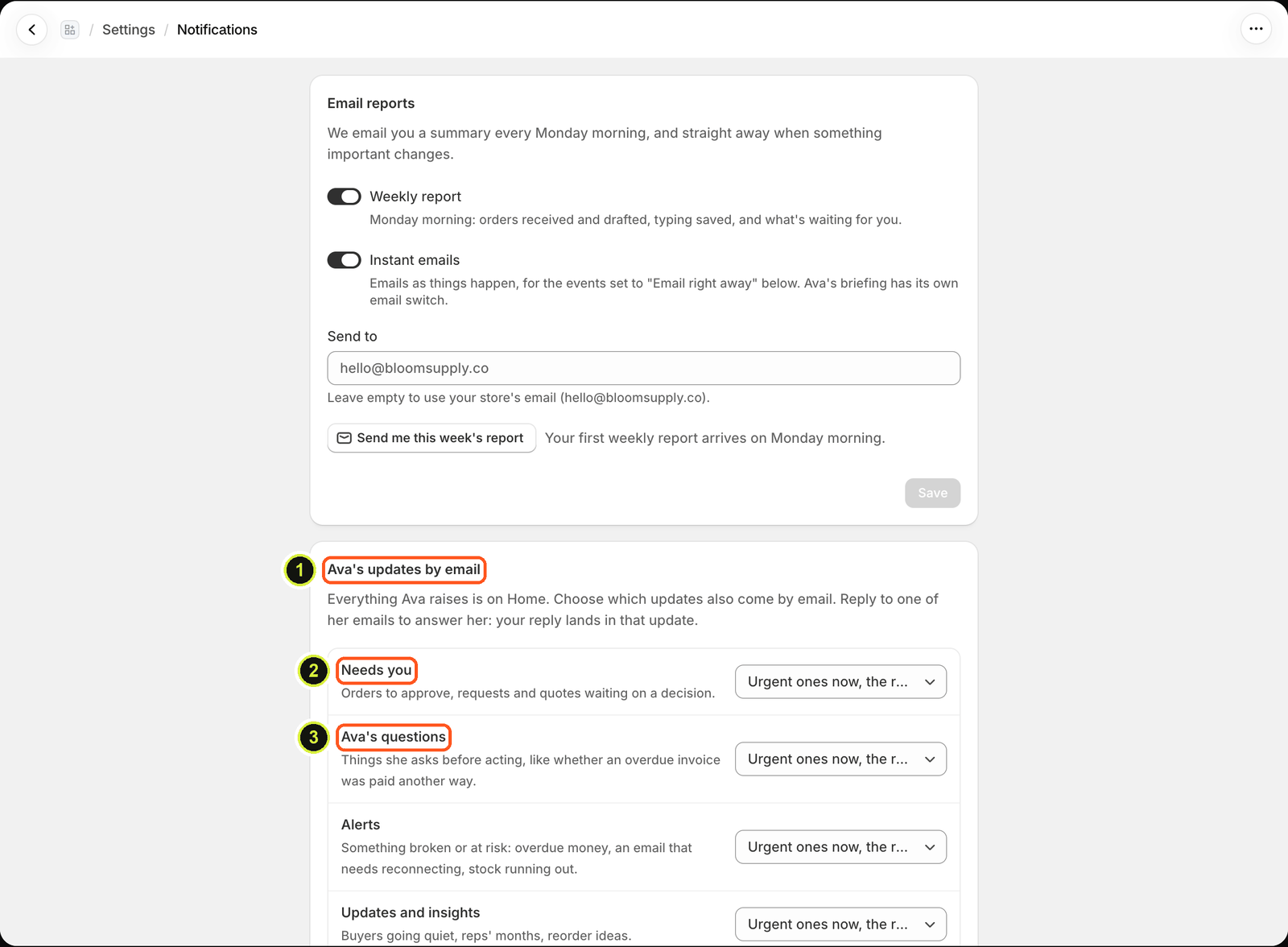 Settings → Notifications: Ava's updates by email, one choice per kind
Go to Settings → Notifications → Ava's updates by email. For Needs you, Ava's questions, Alerts and Updates and insights, choose:
- Urgent ones now, the rest in the briefing (the default),
- Every one right away,
- In the briefing,
- Only in the app.
You can answer an update by replying to its email from your own address. Your reply lands in that card's conversation and your agent answers by email. Things you already get an email for in What you're told aren't sent twice.
The list of things you asked your agent to stop telling you about is on the same page. Click Tell me again to undo one.
The same list everywhere
- Every main page shows the updates for that page behind its Ava button, with a clock to snooze each one.
- In Claude or ChatGPT, ask "What do you need from me?" to list your updates and answer questions. See Run your wholesale desk from Claude or ChatGPT.
- In Shopify Sidekick, ask "What wholesale updates need me?". See Shopify Sidekick.
If something goes wrong
- A button is greyed out. Your role doesn't allow that action. See Users and permissions.
- An update keeps coming back after Snooze. It still needs you. Answer it, or click Dismiss.
- You muted something by mistake. Go to Settings → Notifications and click Tell me again.