
Until a few things are switched on, a buyer who visits your store sees retail prices, no way to apply and nothing that says "wholesale". The setup checklist on Home lists those things as outcomes, opens Shopify on the right screen for each one, and ticks each step off by itself once it's in place.
Who can do it: an admin. Anyone on your team can see the checklist.
In the app your agent is called Ava by default; you can rename her. Steps that name your agent use that name.
The checklist
Open the app. Get your store ready for wholesale sits at the top of Home until every required step is done.
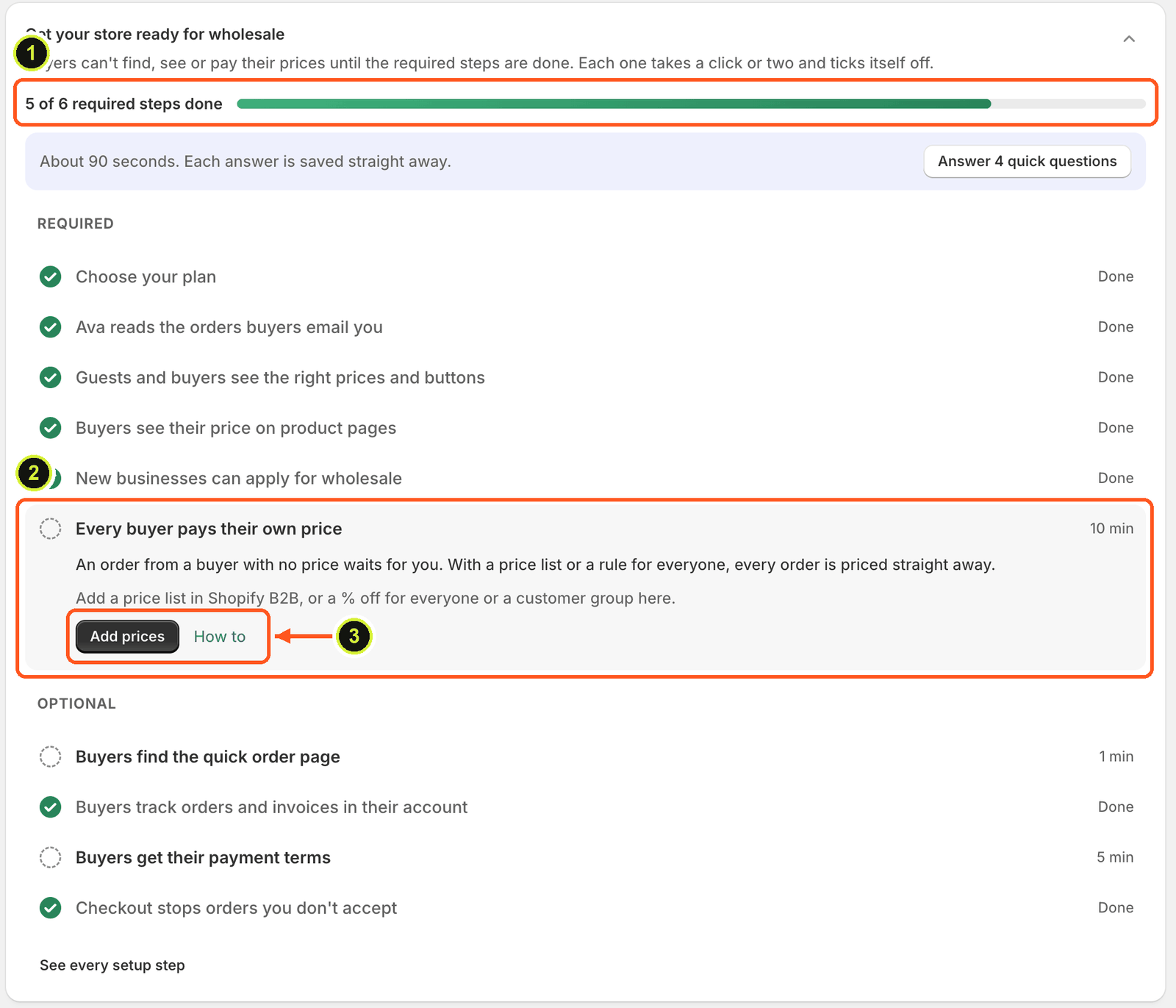 Home, Get your store ready for wholesale, one step open
- Progress: how many required steps are done. A Setup: 5 of 6 button in the page header (on Orders, Wholesale store and your agent's page) brings you back here from anywhere.
- One step open at a time: why it matters, what you do, and its button. The first step still to do opens on its own.
- How to: opens the help article for that step.
Click the arrow at the top right to fold the checklist; it stays folded in this browser. See every setup step opens Settings → Setup guide, with everything else the app can do for you.
Steps tick themselves off. For the theme and customer account steps, the app checks your published theme and your accounts editor each time you come back to the app's tab, so finish in Shopify, click Save, and switch back.
Required steps
| Step | What it gives you | What you do |
|---|---|---|
| Choose your plan | How many orders a month and which tools are on | Done when you install |
| Your agent reads the orders buyers email you | Emailed POs, PDFs and spreadsheets become checked draft orders | Forward your orders inbox or connect your email. See Forward orders from your inbox |
| Guests and buyers see the right prices and buttons | Guests don't see wholesale prices; sign in and apply show on your store | Turn on the app embed (one click, below) |
| Buyers see their price on product pages | Signed-in buyers see their own price and can order from the product page | Add the product page blocks (below) |
| New businesses can apply for wholesale | Shops that find you can ask to buy wholesale | Click Publish the form. The ready-made form goes live at yourstore.com/apps/wholesale/apply. Nothing to build |
| Every buyer pays their own price | No order waits because a buyer has no price | Add a price list. See How wholesale prices work |
Optional steps
| Step | What it gives you |
|---|---|
| Buyers find the quick order page | Your quick order page is already live. Add it to your menu. See The quick order page |
| Buyers track orders and invoices in their account | The Wholesale page and application banner in customer accounts (below) |
| Buyers get their payment terms | Invoices with a due date, reminders on time. See Payment terms |
| Checkout stops orders you don't accept | Minimums, case packs and PO numbers checked at checkout. See Checkout rules |
Steps that don't apply to you (for example the theme steps when your buyers never order on your store) aren't shown.
Turn on the app embed
- On the step Guests and buyers see the right prices and buttons, click Open theme editor.
- Shopify's theme editor opens on App embeds with Wholesale store already switched on.
- Click Save in the theme editor, then come back to the app.
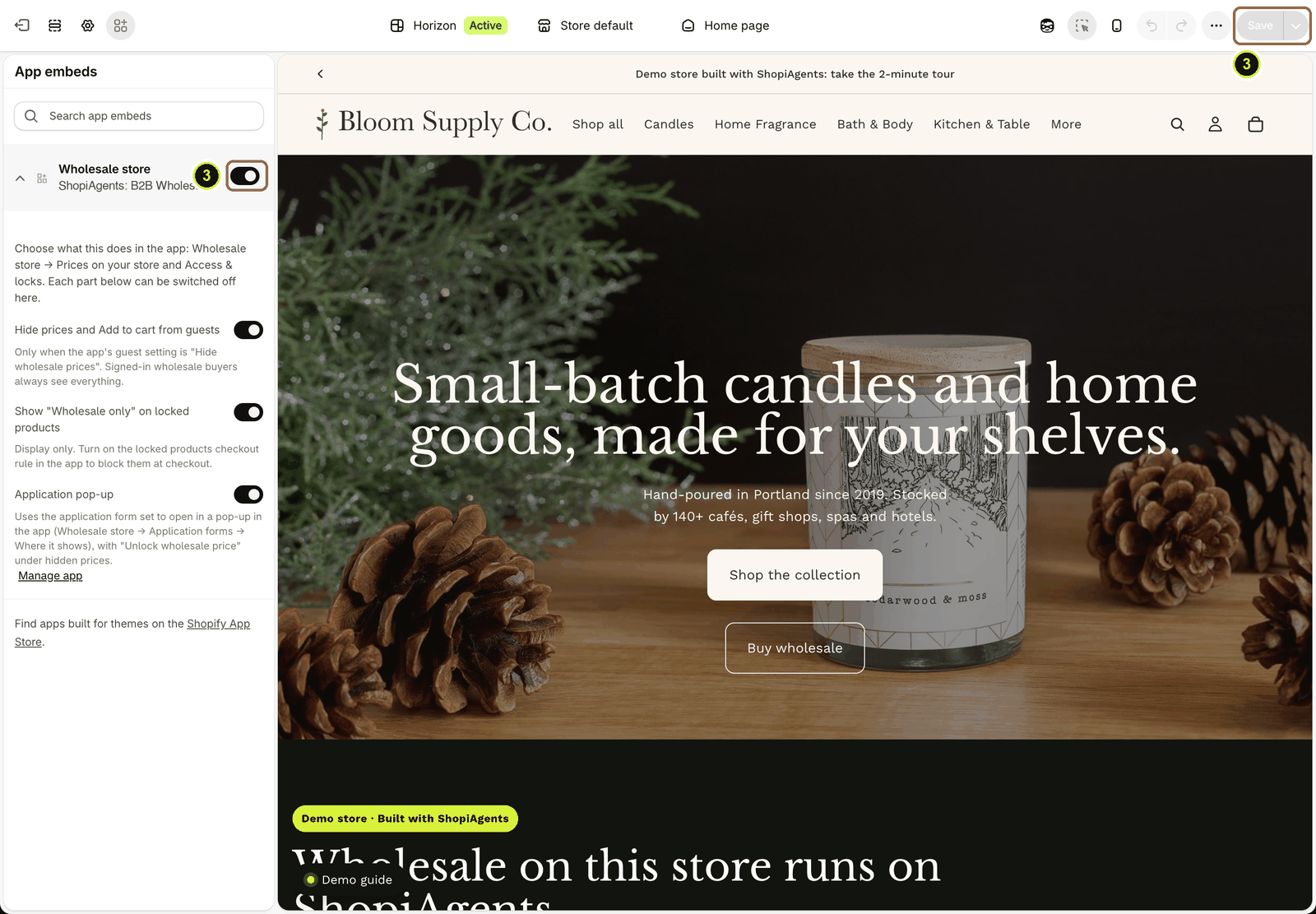 Shopify theme editor, App embeds panel with Wholesale store switched on
What the embed shows to whom is set in Wholesale store → Who sees what. See Who sees what.
Add the blocks to your product page
- On the step Buyers see their price on product pages, click Add to product page.
- The theme editor opens on a product with the Wholesale price block placed. Drag it under the product price if you like and click Save.
- Want an Order wholesale button too? In Wholesale store → Who sees what, under Order wholesale button, click Add to theme. See The order form and "Order wholesale" button.
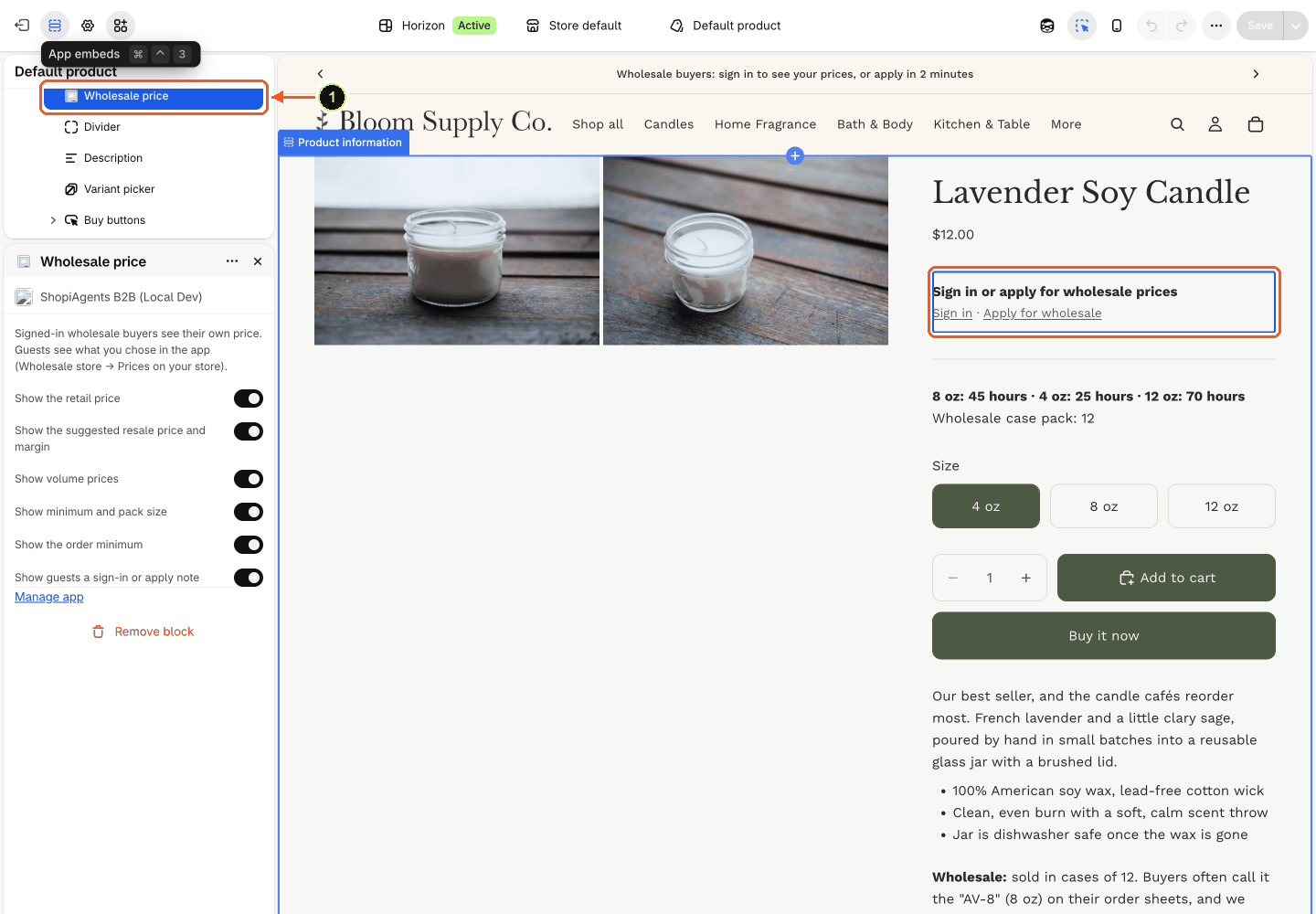 Theme editor on a product page with the Wholesale price block selected
The step ticks off once either block is on your product page template.
Add the Wholesale page and banner to customer accounts
Your buyers' Wholesale page (orders, invoices, quotes, documents) is already in their Shopify customer account. One block is worth adding: the banner that tells applicants where they stand.
- On the step Buyers track orders and invoices in their account, click Open accounts editor. Shopify's checkout and accounts editor opens on the Orders page.
- Under Announcement bar, click Add block and pick Wholesale orders link.
- Click Save.
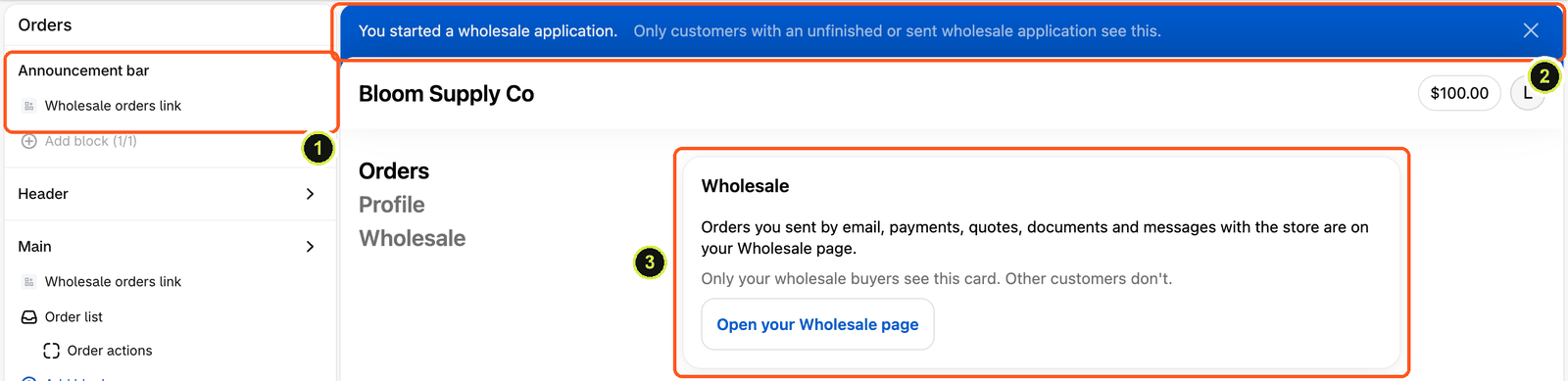 Accounts editor, Orders page: the Wholesale orders link in the Announcement bar and the Wholesale card
- The block in the Announcement bar.
- The banner as customers see it. It shows only to customers with an unfinished or sent application ("Finish your wholesale application", "Application received"), never to anyone else.
- The Wholesale card that links buyers to their Wholesale page. It's there already; only buyers see it.
Pages you don't have to build
These pages are on your store as soon as you install, on your own domain and inside your theme:
| Page | Address |
|---|---|
| Application form | yourstore.com/apps/wholesale/apply |
| Quick order | yourstore.com/apps/wholesale/quick-order |
| Order form | yourstore.com/apps/wholesale (once switched on) |
Link them from your menu, emails and invoices. A signed-in shopper sees where their application stands on each of them.
Good to know
- A new theme: app embeds and blocks belong to a theme. If you publish another theme, the checklist shows those steps again; repeat them there.
- Mark as done: a step the app can't check (a menu link, for example) has Mark as done.
- Feature pages remind you too. While a step is missing, the page it belongs to shows a slim banner with the same button, for example "Buyers can't see their prices yet. Add the price block to your product page (2 min)."
If something goes wrong
- A step doesn't tick off: check you clicked Save in Shopify and that you edited your published theme. Then switch back to the app's tab; it checks again.
- The theme editor says a block couldn't be added: your theme's product template may not take app blocks in its main section. Add the block from Add block → Apps in the theme editor instead.
- More fixes in Prices and checkout problems.