
A target turns "how's Rachel doing?" into a number. Set one for the whole team, change it for one rep, and see everyone's progress on the Overview and leaderboard.
Who can do it: admins.
Set the team's target
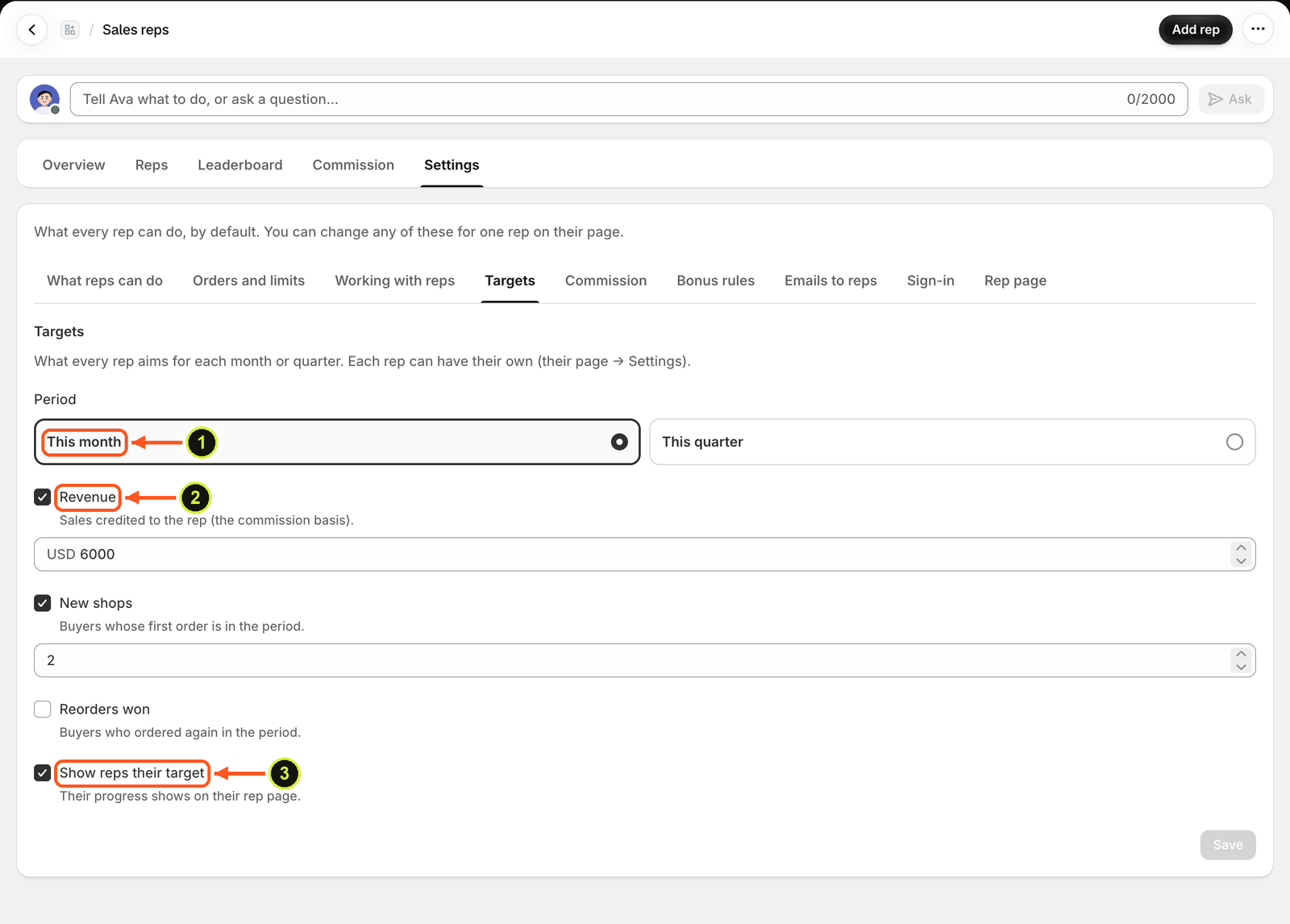 Sales reps → Settings → Targets: period, revenue, new shops and showing reps their target
- Go to Sales reps → Settings and click Targets.
- Under Period, choose This month or This quarter.
- Tick what counts and enter the target:
- Revenue: sales credited to the rep (the same as the commission basis).
- New shops: buyers whose first order is in the period.
- Reorders won: buyers who ordered again in the period.
- Tick Show reps their target if reps should see their progress on their page.
- Click Save.
A different target for one rep
Open the rep, go to their Settings tab and set their own targets. Anything you don't set follows the team's.
Where you see progress
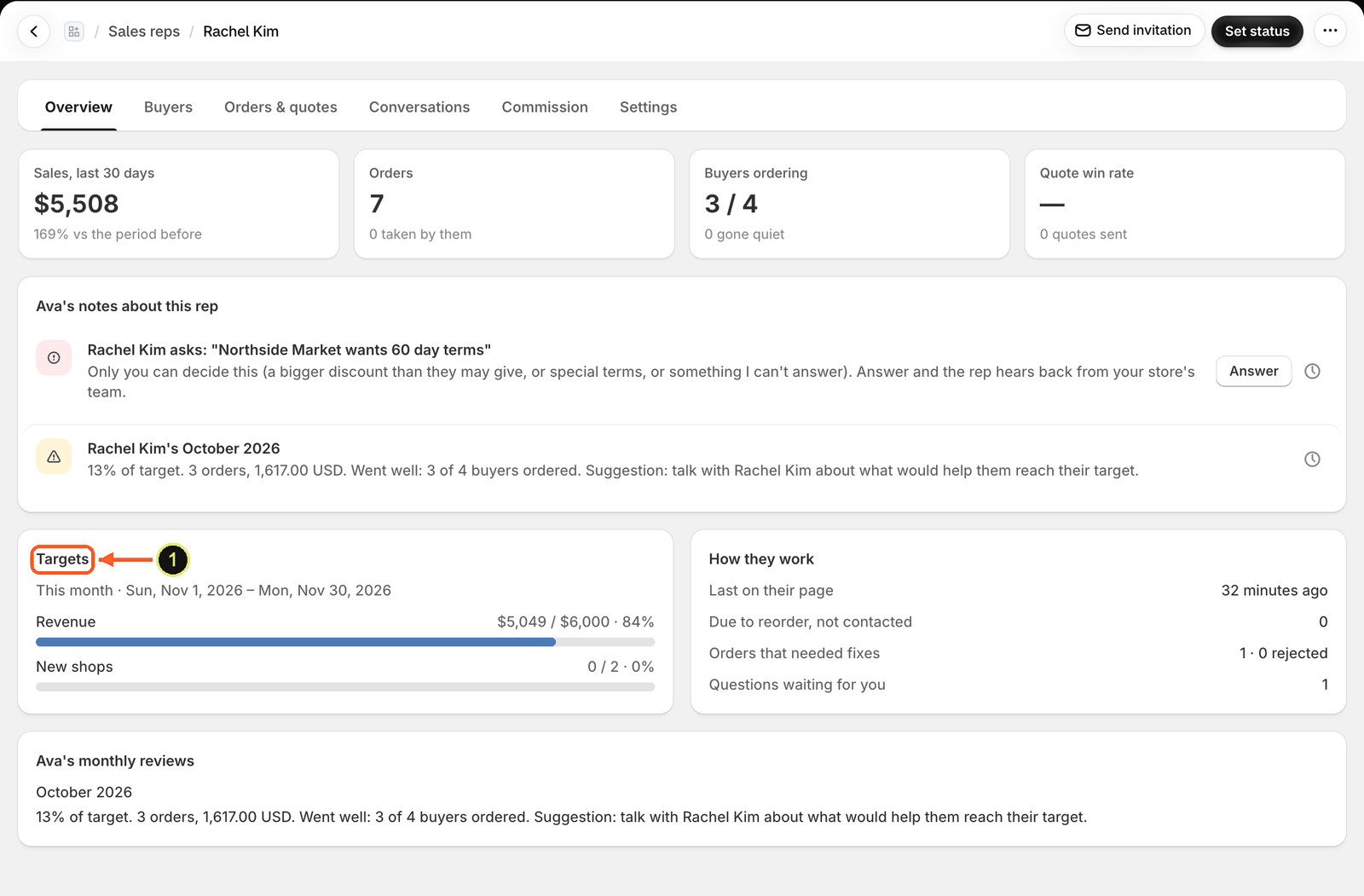 A rep's Overview: the Targets card with revenue and new shops progress
- The rep's Overview: a bar per target with the amount and percentage.
- Sales reps → Overview: every rep's progress.
- Leaderboard: rank by Target. With more than one target, the percentage is the average of them.
- With Show reps their target on, the rep sees Your target at the top of their page.
When a rep hits their revenue target, a Target hit bonus rule can add extra commission. See Bonus rules.
Related
Still stuck? Email support@shopiagents.com and a person will help.